This page explains how a teacher creates a quiz, what each group of options controls, and which extra experimental modes are available only to administrators.
Starting from the personal quiz collection
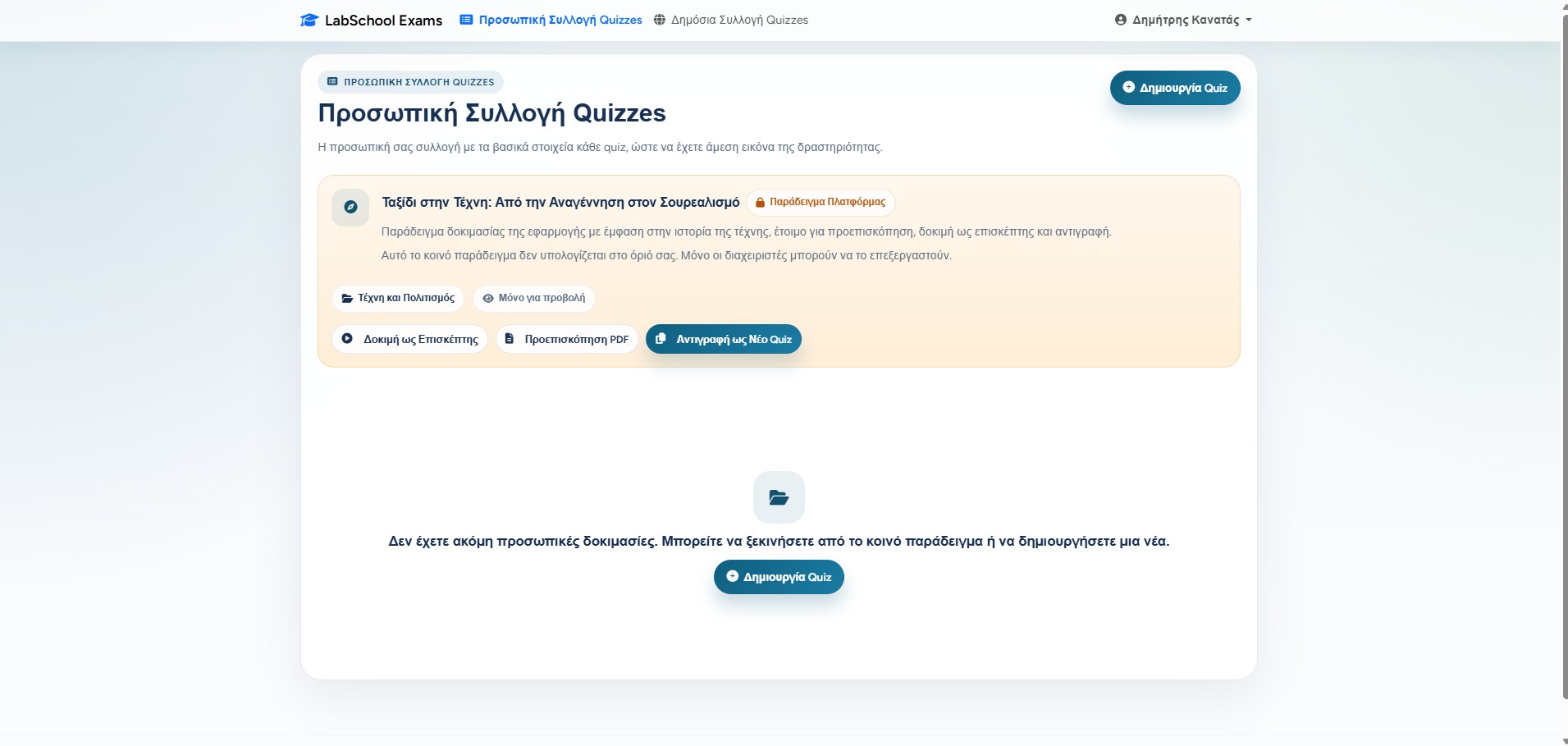
The teacher starts from the personal quiz collection. From there, a new quiz can be created, an existing quiz can be edited, or a shared example quiz can be copied as a new personal quiz.
The example quiz is useful for a first test because it already has structure and content. A teacher can preview it or copy it, while administrators can also edit platform examples directly.
The personal quiz collection is the starting point for creating, copying, and editing quizzes.
A. Basic quiz information
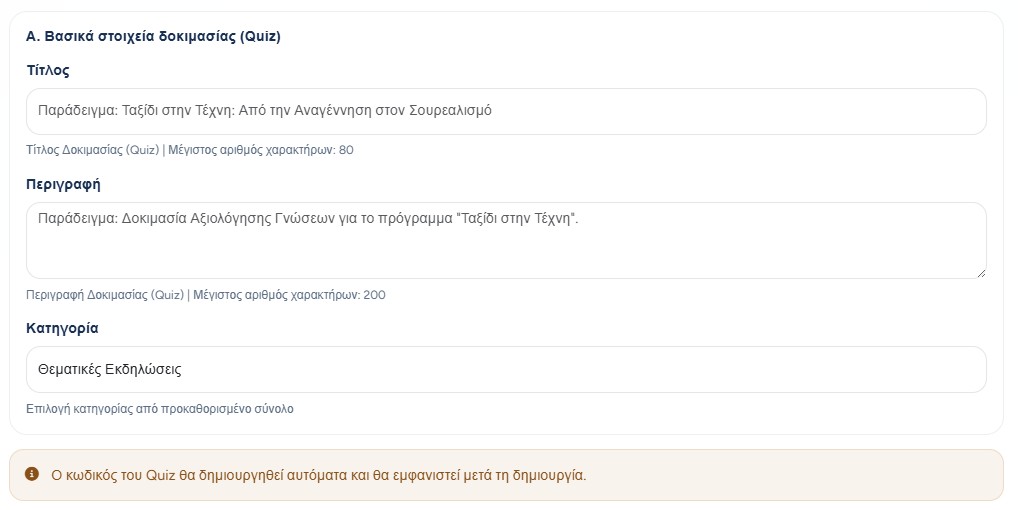
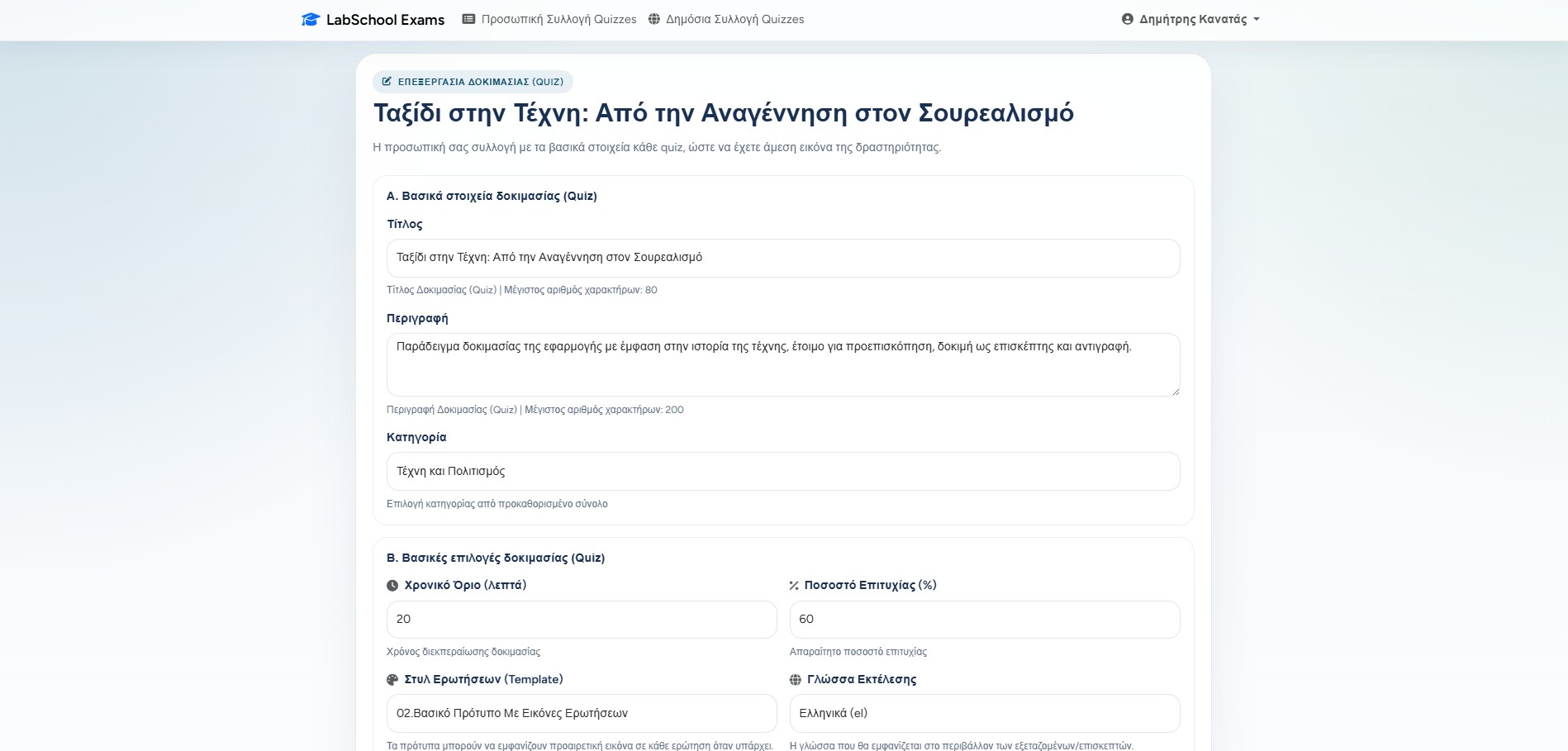
The first part describes the quiz itself. The title is what the teacher and participants will recognize. The description explains the purpose of the quiz. The category helps organize quizzes into a meaningful collection.
Title
Use a short and clear title. It is limited so it stays readable in lists and reports.
Description
Add a brief explanation of what the quiz is about and when it should be used.
Category
Choose the subject or group where the quiz belongs.
Basic information: title, description, and category.
B. Main quiz settings
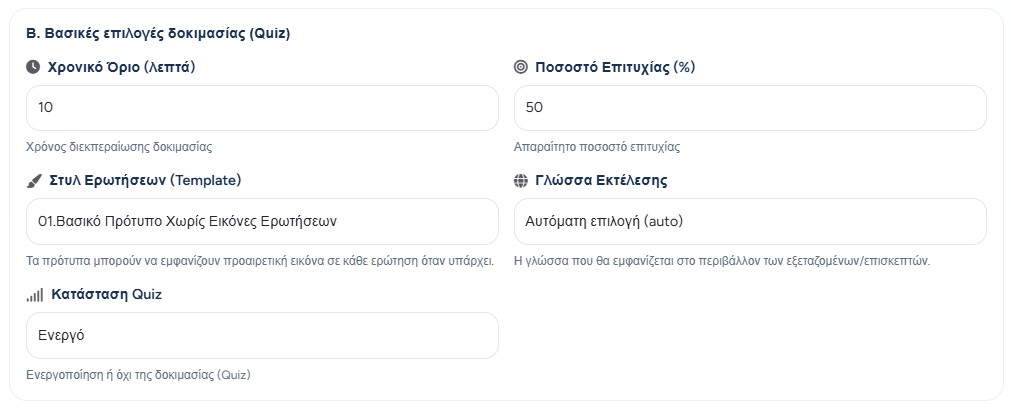
The main settings define how the quiz behaves. The time limit is written in minutes. The success percentage is the score a participant must reach in order to pass.
The display template controls how questions appear to participants. The language can be set to Greek, English, or automatic selection. The quiz status decides whether the quiz is active or inactive.
Time, pass percentage, display template, language, and status.
C. Advanced teacher options
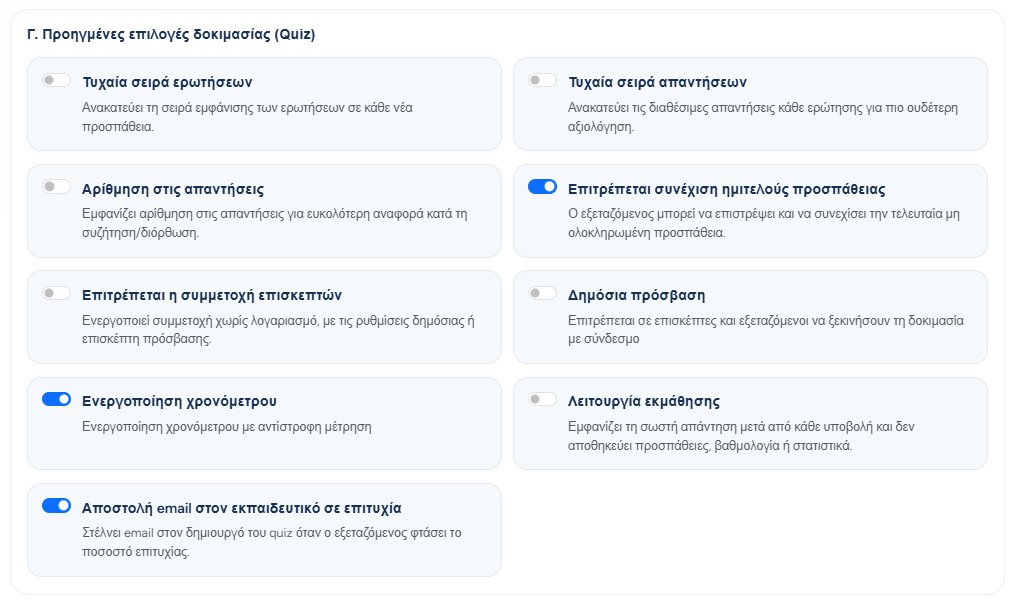
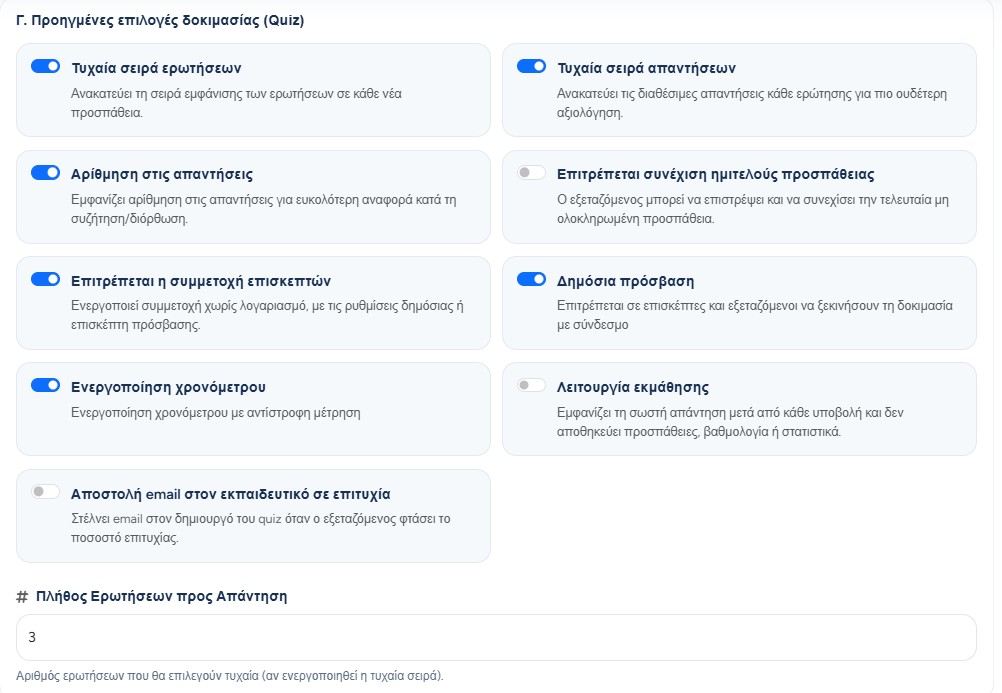
These options let the teacher adapt the quiz to the teaching scenario. Some make the quiz more controlled, some make it easier for participants, and some are useful for practice or feedback.
Randomization
Random question order changes the order of questions. Random answer order changes the order of answers inside each question.
Access and continuation
Guests can be allowed, public access can be enabled, and unfinished attempts can optionally be resumed.
Learning and notifications
Learning mode shows the correct answer after each submission. Email notification can inform the teacher when a participant passes.
Advanced options during quiz creation.While editing, random question order can also expose the number of questions selected for each attempt.
D. Examinee access and quiz image
The examinee access policy controls how registered examinees enter the quiz. The teacher can allow PIN access, personalized links, or both. This is separate from public guest access.
A quiz image can also be uploaded. It is optional and is used as visual support for the quiz. The upload has a size limit so the application remains light and fast.
Access policy for registered examinees.Optional image upload for the quiz.
Editing an existing quiz
Editing uses almost the same form as creation. The teacher can update the title, description, category, timing, template, language, status, access rules, and image.
If a quiz already has submitted or locked content, the application may restrict content changes. In that case, only safer operational settings, such as status and selected administrator controls, remain editable.
The edit page keeps the same structure so the teacher can find the same settings again.
Bulk participation and administrator options
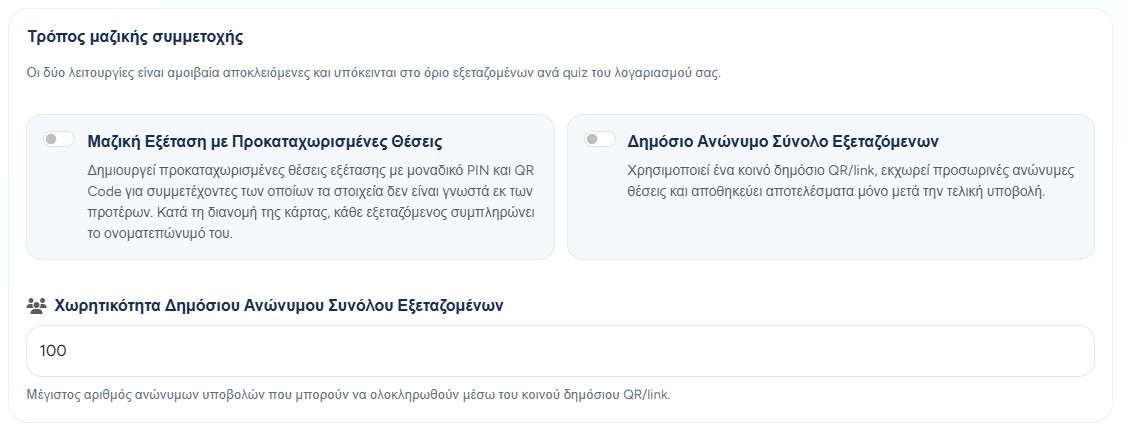
Teachers can choose either bulk examination with pre-registered slots or a public anonymous pool. Both modes enforce the account participant limit, are mutually exclusive, and are intended for participants whose details may not be known in advance.
Bulk examination with pre-registered slots
Creates separate exam slots with unique PINs and QR Codes. Each printed card can be handed to a participant, who writes their name on it for an external association.
Public anonymous pool
Uses one common public QR/link. A temporary anonymous slot is assigned when someone enters, while a permanent result is stored only after final submission and within the configured capacity.
The two teacher participation modes are mutually exclusive and use the participant limit configured for the account.
Important: bulk examination with pre-registered slots and public anonymous pool mode cannot be enabled together. Learning and second-screen modes cannot be combined with either of these special participation modes.
Administrator-only quiz options
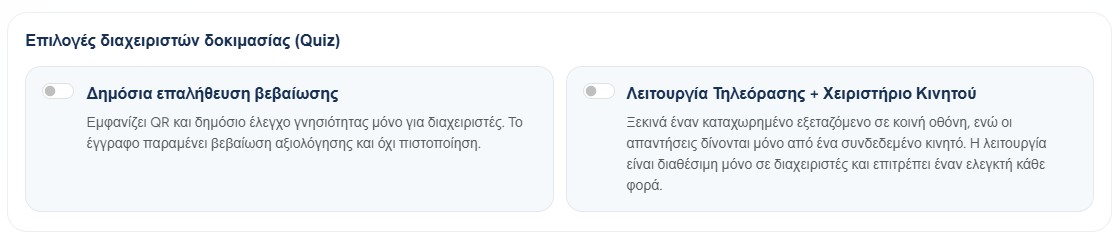
The following controls are visible only to administrators. They are separate from the bulk participation modes available to teachers.
Public certificate verification
Adds QR/public verification for certificates. The document remains evidence of assessment, not an official certification.
Second screen and mobile controller
Starts a registered examinee on a shared screen while answers are given from the connected mobile controller.
Public certificate verification and second-screen/mobile-controller mode remain administrator-only controls.