This page follows the participant from the first entry screen to the final result, explaining how starting, answering, skipping, submitting, resuming, and completing a quiz work according to the quiz settings.
Entering the quiz
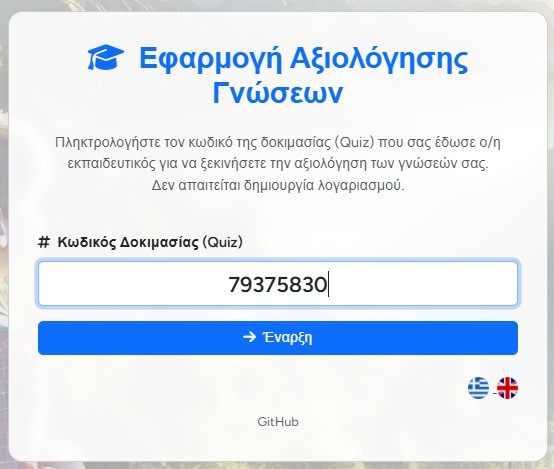
A participant can enter a quiz in different ways, depending on what the teacher has enabled: by typing the quiz code, by using a personal link, by entering a student PIN, or through a public/guest link.
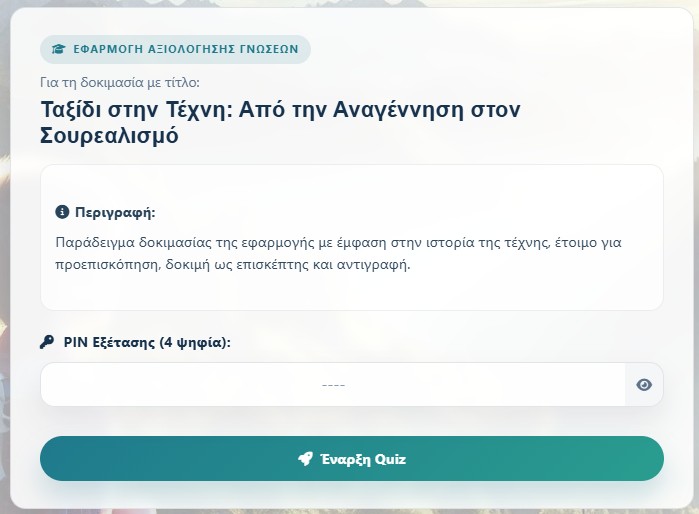
When PIN access is used, the participant sees the quiz title and writes the four-digit examination PIN. This confirms which registered examinee is starting the attempt.
The general entry screen accepts the quiz code given by the teacher.With PIN access, the participant enters their four-digit examination code before starting.
Starting the attempt
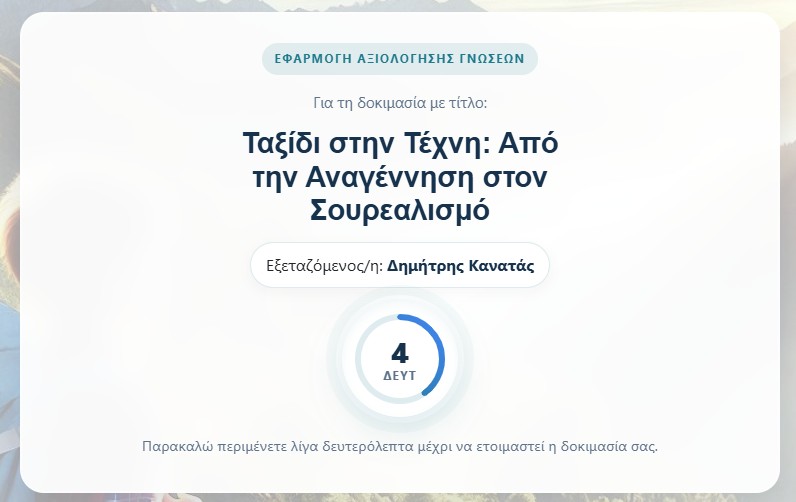
After the participant is identified, the quiz opens with a short start screen. This screen confirms the quiz title and the participant name, then prepares the attempt before the first question appears.
If the quiz has a timer, the remaining time starts from the configured limit and follows the participant through the questions.
The start screen gives the participant a short moment before the quiz begins.
Answering a question
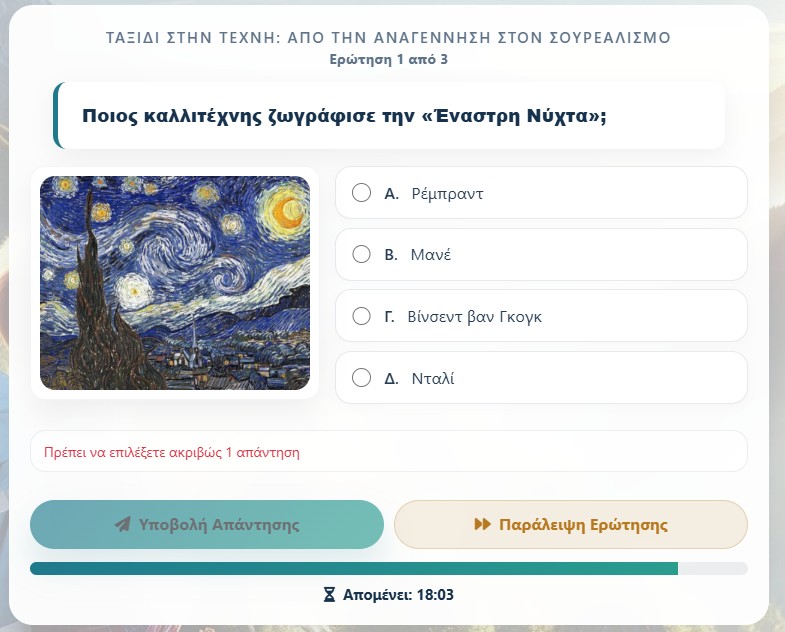
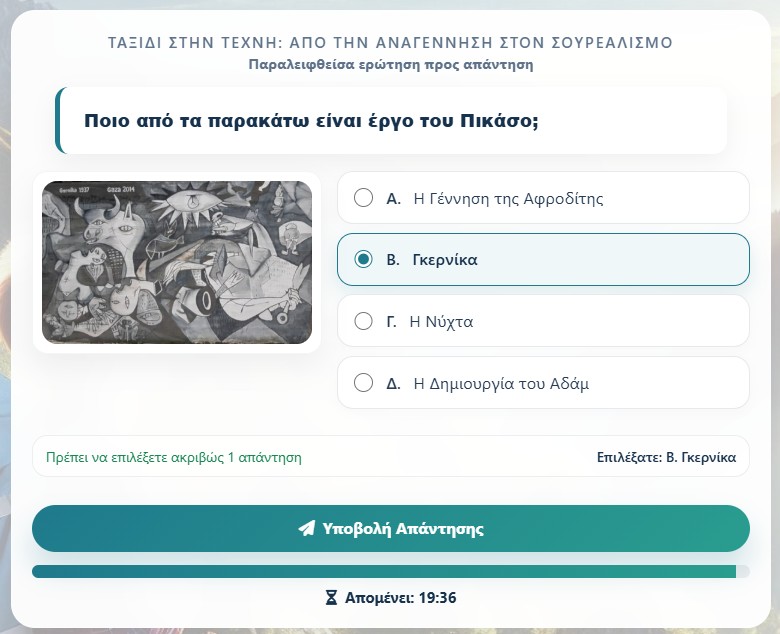
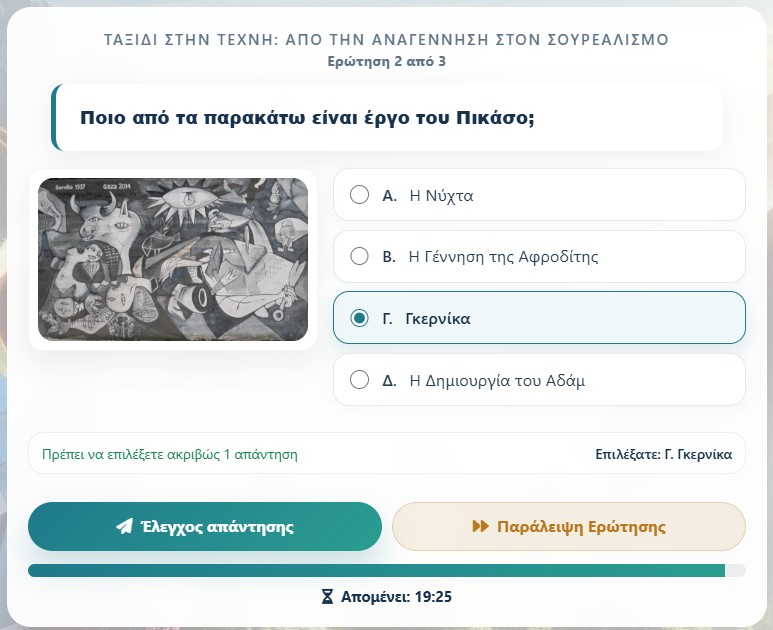
Each question shows the question text, the possible answers, and, when the selected template supports it, an image. The participant chooses the required number of answers and then submits the answer.
The page also shows progress and, if active, the remaining time. This helps the participant know where they are in the quiz and how much time is left.
Selection
The participant marks one or more answers, depending on the question.
Validation
The application asks for the correct number of selected answers before accepting the response.
Progress
The progress indicator shows how far the participant has moved through the quiz.
The question screen combines answers, image, progress, and timer in one place.
Skipping and returning to unanswered questions
If skipping is available in the flow, the participant can leave a question for later. The quiz marks that question as skipped and continues to the next one.
Before final submission, skipped questions can appear again so the participant can answer them. This prevents accidental omissions while still allowing the participant to move forward when they are unsure.
A skipped question can return as a question that still needs an answer.
Final submission
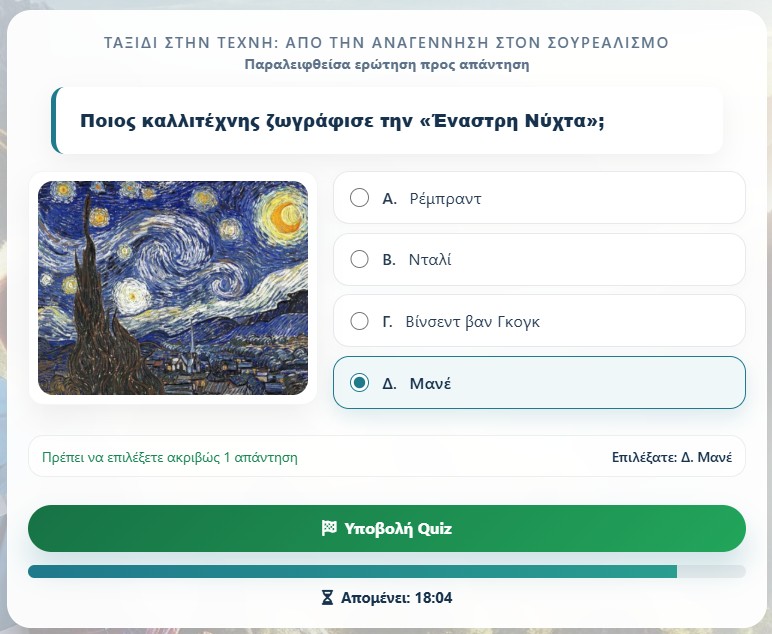
On the last question, the button changes from answer submission to final quiz submission. This is the moment when the attempt is completed and the answers are graded.
If a timer expires, the application can force the attempt to finish according to the quiz rules. The result then reflects the answers that have been saved up to that point.
On the final step, the participant submits the whole quiz.
Result and new attempt
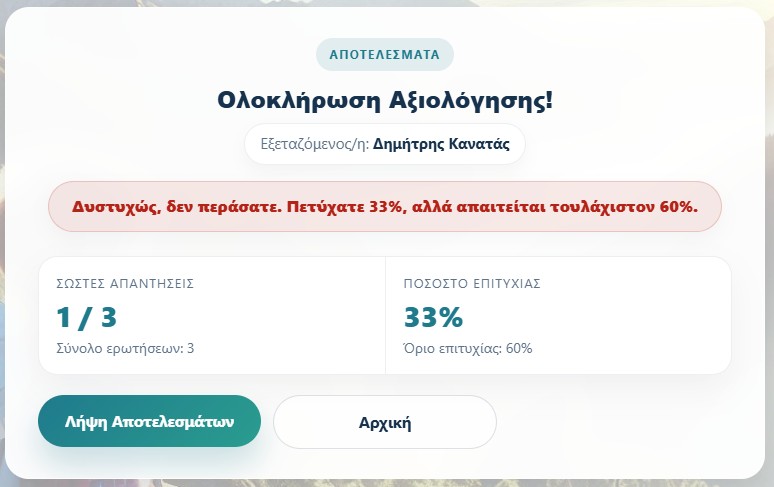
After submission, the result page shows whether the participant passed, how many answers were correct, and the success percentage compared with the required pass percentage.
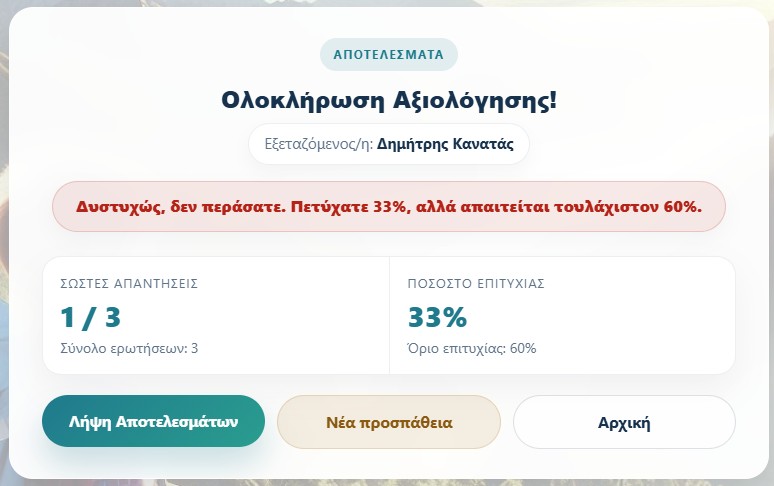
If the quiz and the examinee's limits allow another try, a new attempt button is available. Otherwise, the participant can return to the home screen or download the result when this option is shown.
The result screen summarizes correct answers, percentage, and pass status.When attempts remain, the participant may start a new attempt.
Continuing an active attempt
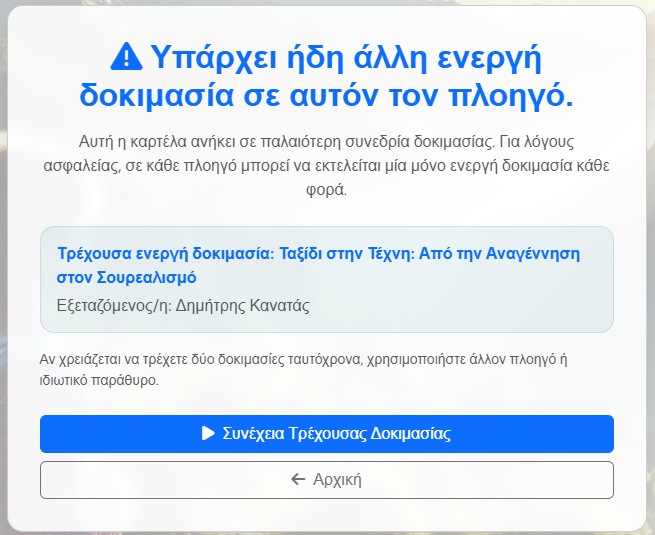
For safety, the application allows only one active quiz attempt in the same browser session. If the participant opens another tab or returns from an older session, they may see a message that another active attempt already exists.
When continuation is allowed, the participant can continue the current attempt. If continuation is not allowed, the quiz follows the teacher's settings and may start a fresh attempt instead.
This protection helps avoid two tabs submitting different answers for the same attempt.
The active-session message guides the participant back to the running attempt.
Learning mode
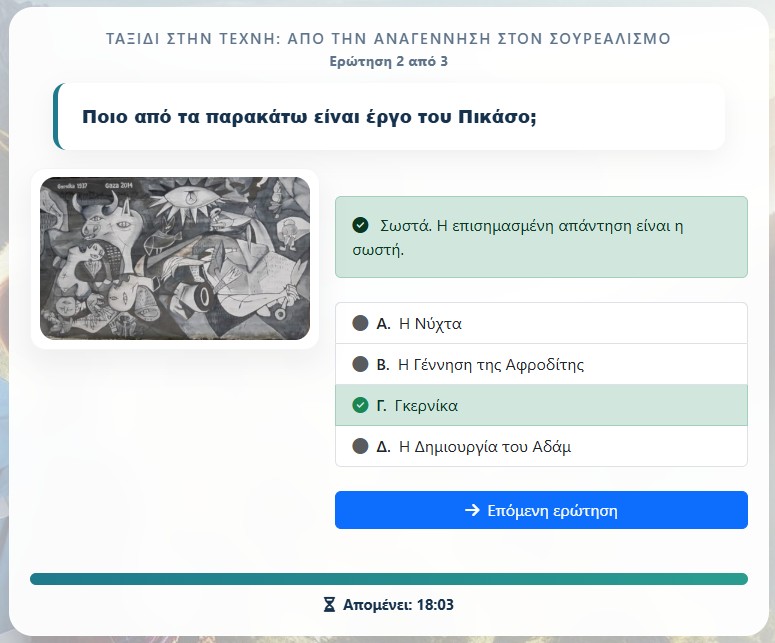
In learning mode, the quiz behaves more like practice than formal assessment. The participant checks an answer and immediately sees feedback before moving to the next question.
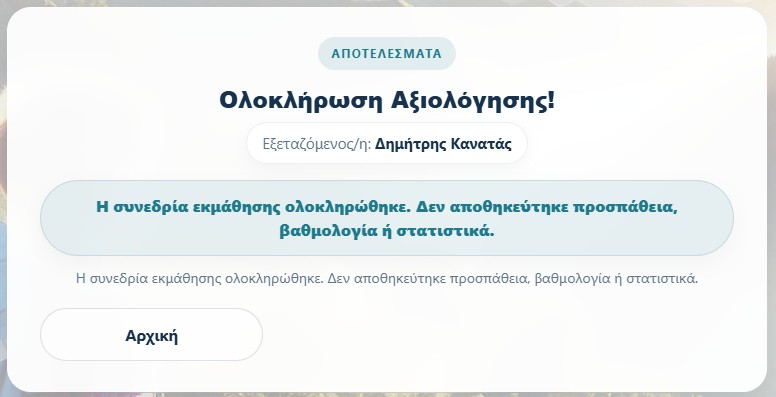
Learning mode does not save a normal attempt, grade, or statistics. It is useful when the goal is teaching and self-correction rather than assessment.
In learning mode, the button checks the answer instead of submitting a graded attempt immediately.The participant sees feedback and then continues to the next question.At the end of learning mode, the session closes without saving grade or statistics.
Second-screen flow
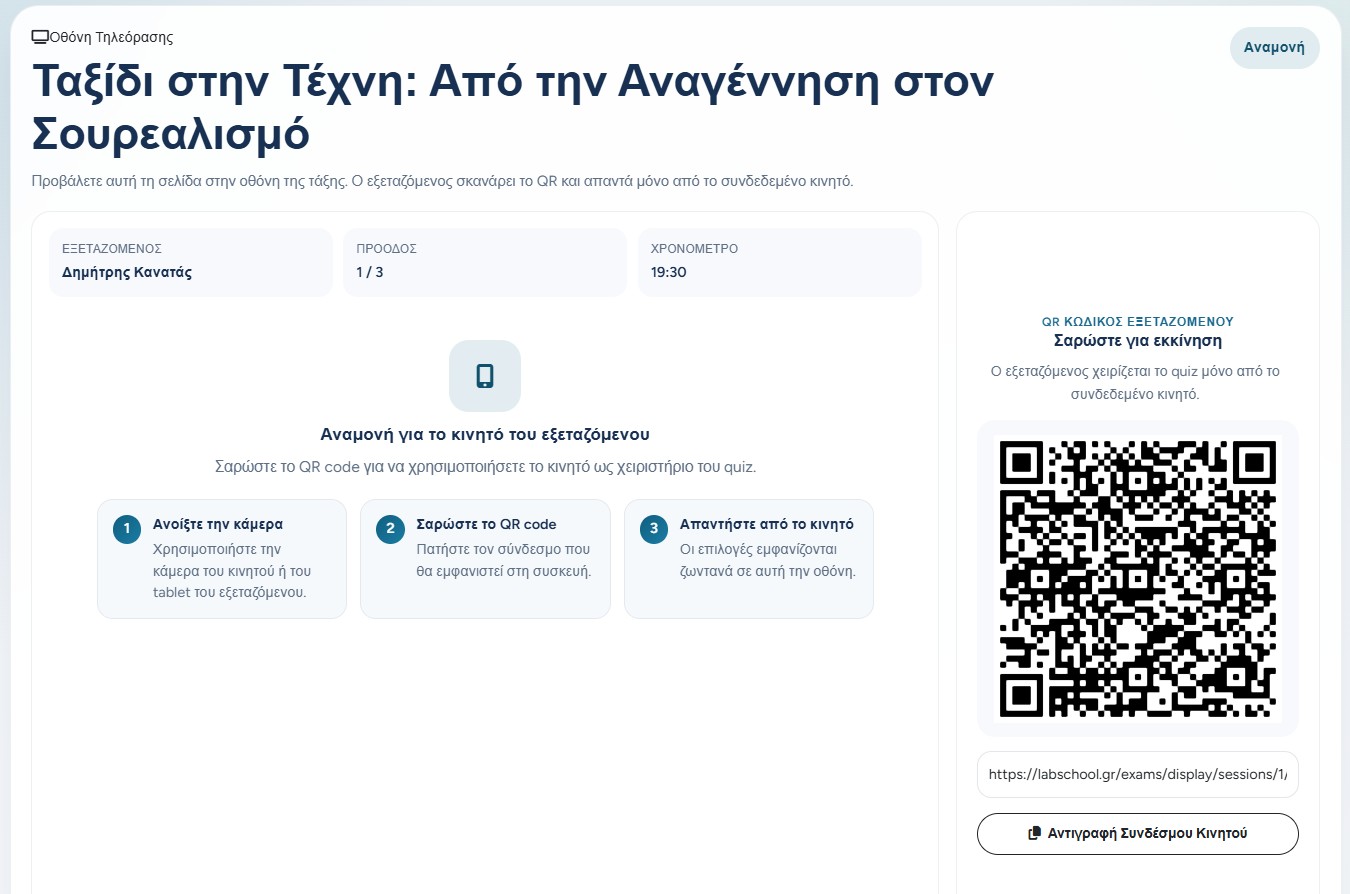
In second-screen mode, the teacher can show the quiz on a shared display while the participant answers from a connected mobile device. The screen first waits for the mobile controller to connect through QR code or link.
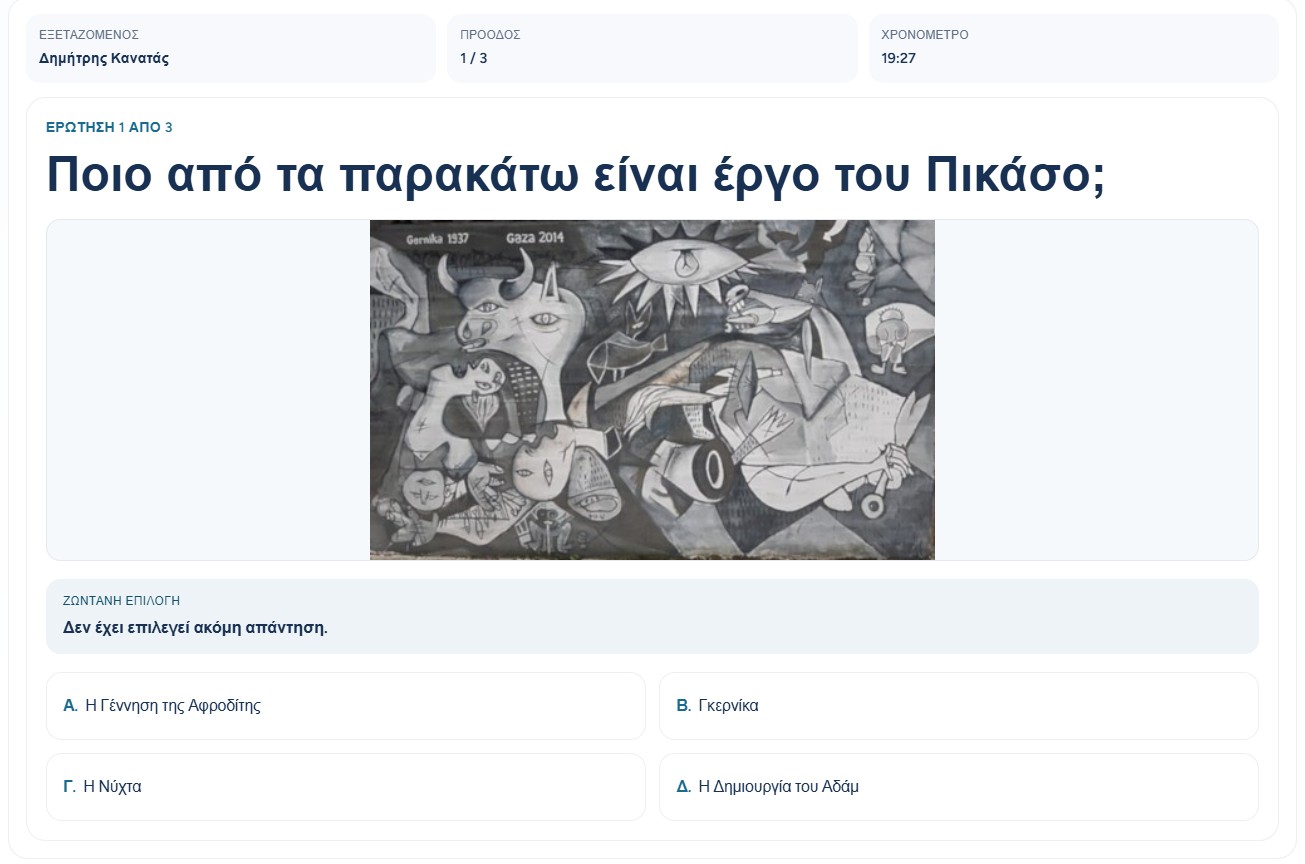
Once connected, the large screen shows the question, progress, timer, and live selection, while the participant controls the answer from the mobile device. This flow is useful for classroom projection or event-style activities.
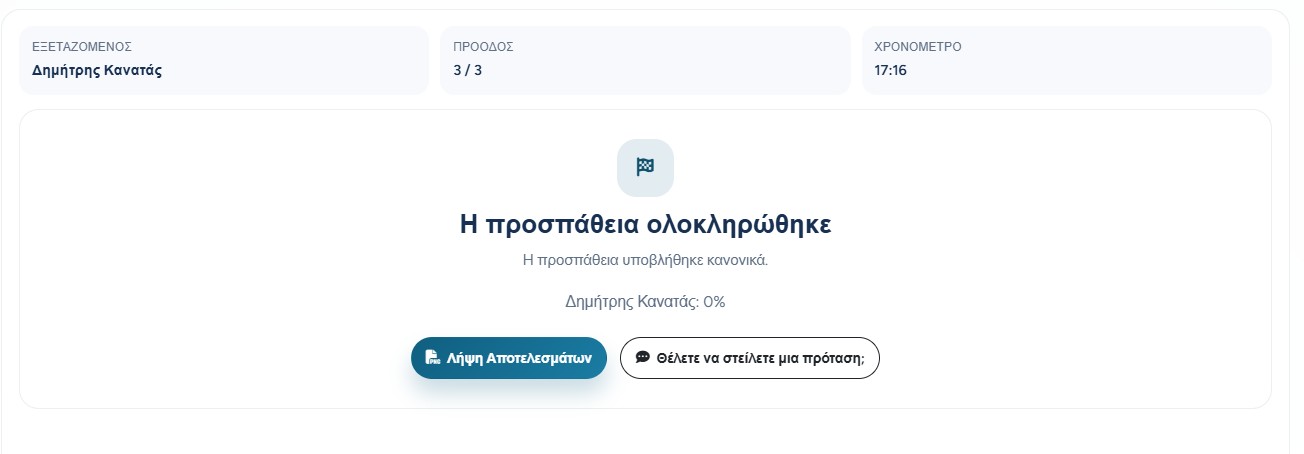
The shared screen waits for the participant's mobile device to connect.The shared display shows the current question and live answer state.After submission, the shared display shows that the attempt was completed.