This page explains how a teacher manages the questions of a quiz, adds possible answers, marks the correct answer or answers, and exports or imports question content with CSV.
The question list of a quiz
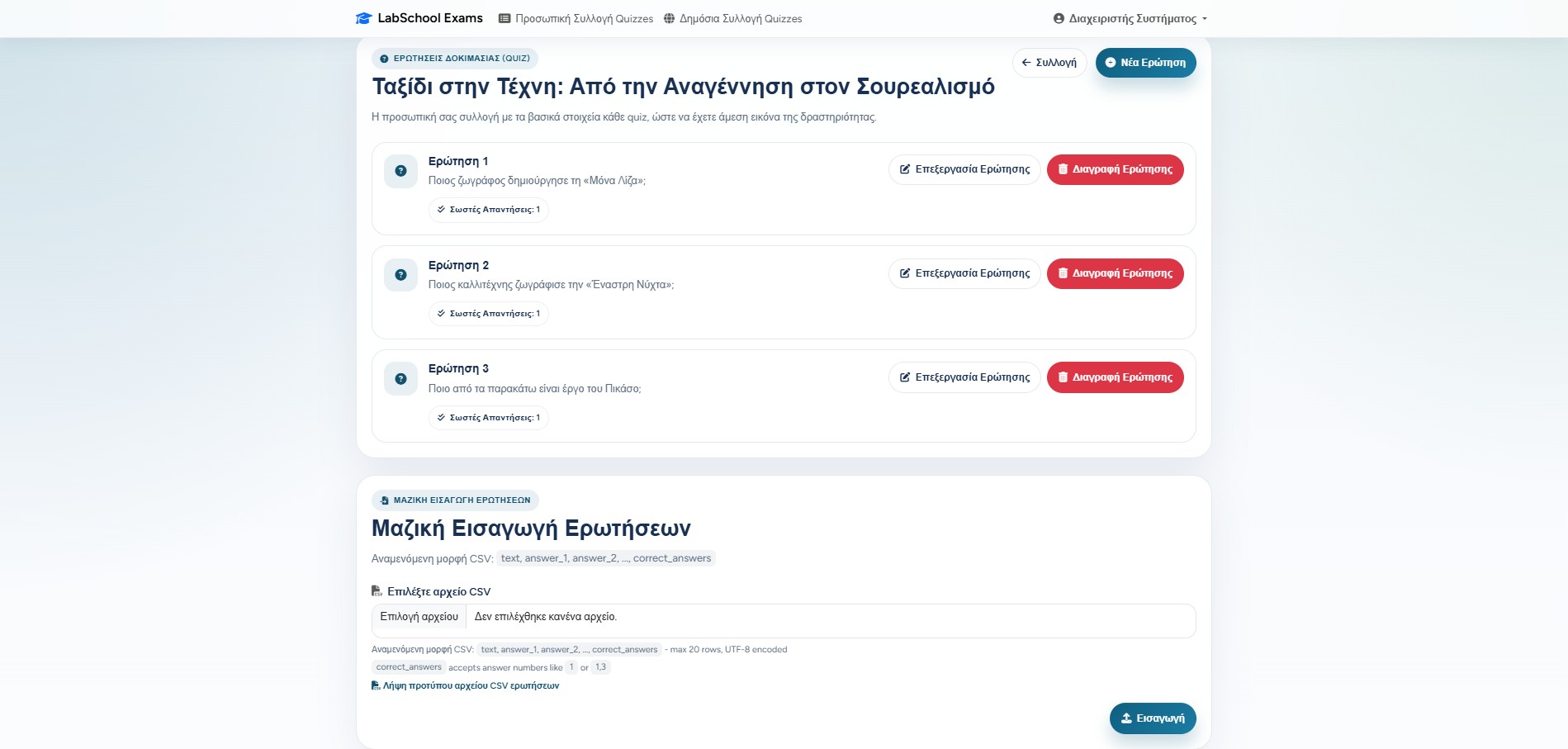
Each quiz has its own question list. From this page, the teacher can add a new question, edit an existing one, or delete a question that is no longer needed.
Every question card shows the question text and how many correct answers it has. This helps the teacher quickly check whether the quiz is ready before sending it to examinees.
New question
Opens the form where the teacher writes the question and its answers.
Edit question
Allows changes to the question text, image, answers, and correct choices.
Delete question
Removes the question from the quiz after confirmation.
The question list includes edit and delete actions, plus the number of correct answers.
Creating a question
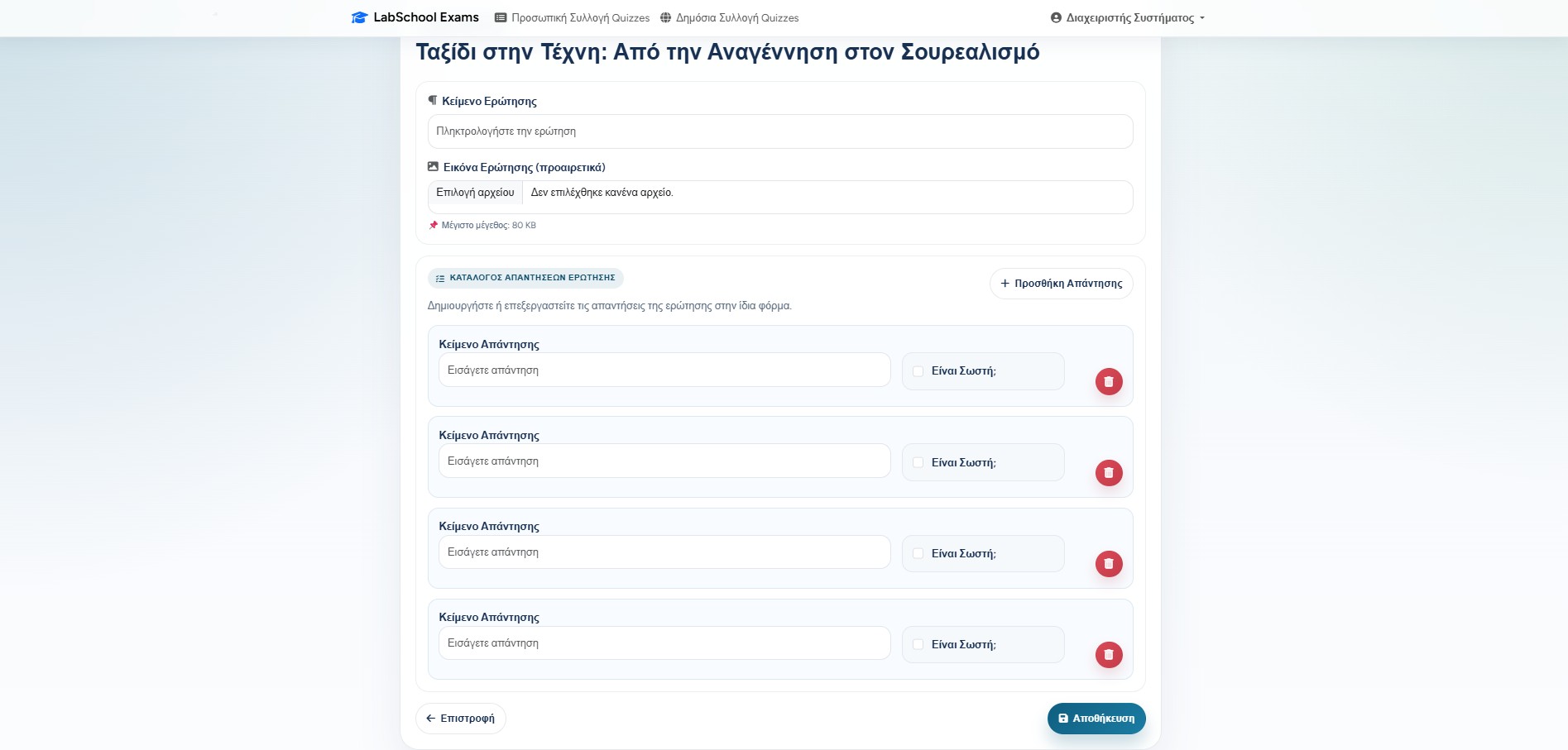
To create a question, the teacher writes the question text and then adds the possible answers. The form starts with answer rows ready to complete, and more answers can be added when the account limit allows it.
At least two answers are required, and at least one answer must be marked as correct. If a question has more than one correct answer, the teacher simply marks all the correct choices.
For regular teacher accounts, the maximum number of answers per question follows the account limits. Administrators are not restricted by the same teacher limit.
The question form: question text, optional image area, answer rows, and correct-answer checkboxes.
Question images
If the quiz uses an image-based display template, the teacher can add an optional image to each question. This is useful for paintings, maps, diagrams, screenshots, or any visual material that the participant must observe.
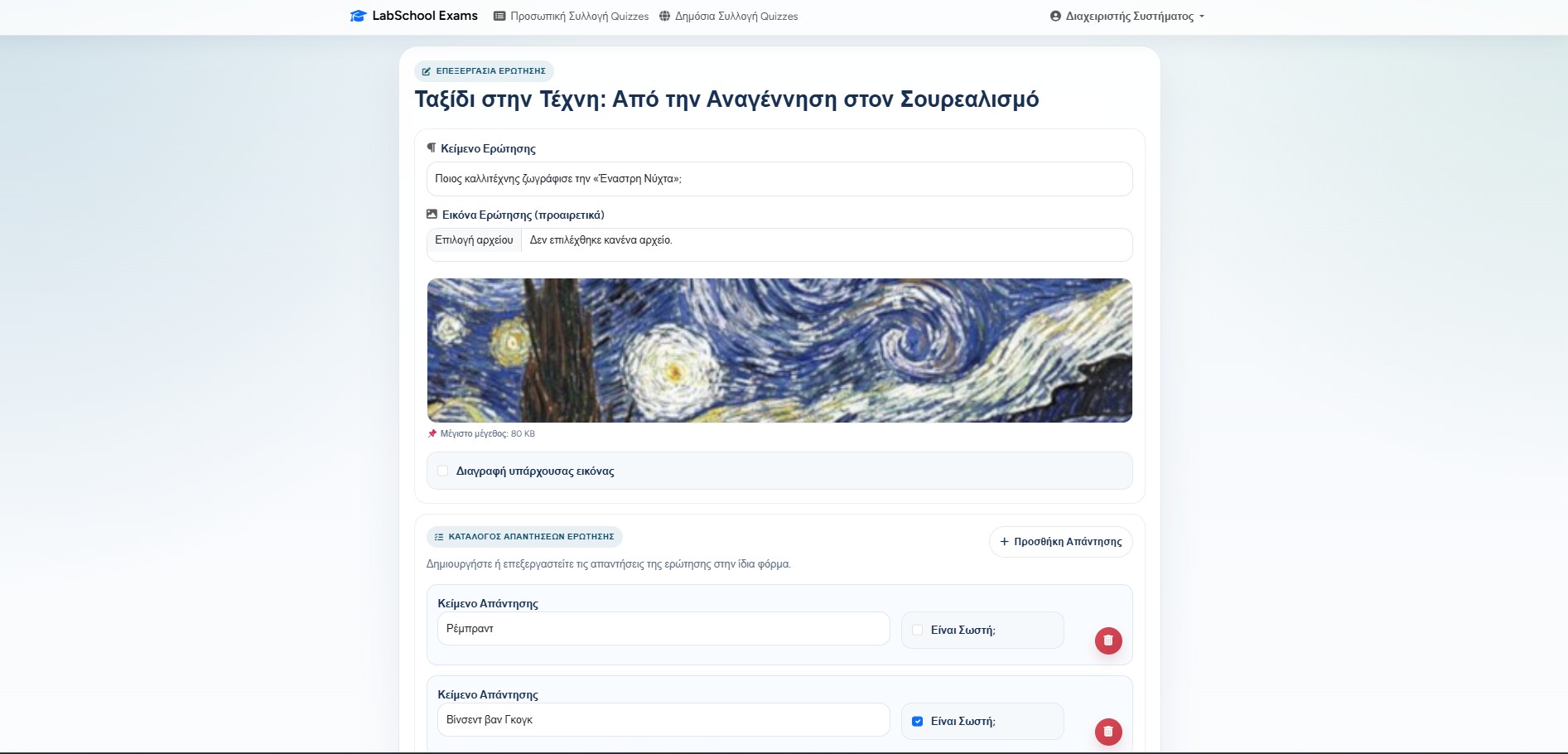
When editing a question that already has an image, the teacher can replace it or remove the existing image. The image has a small file-size limit so the quiz remains fast for participants.
Editing questions and answers
Editing a question uses the same form as creation, but with the current data already filled in. The teacher can correct wording, add or remove answers, and change which answers are marked as correct.
The application keeps the answer structure consistent: empty answer rows are ignored, invalid answer references are rejected, and the number of correct answers is recalculated after saving.
Editing an existing question with an image and answer list.
Exporting and importing questions with CSV
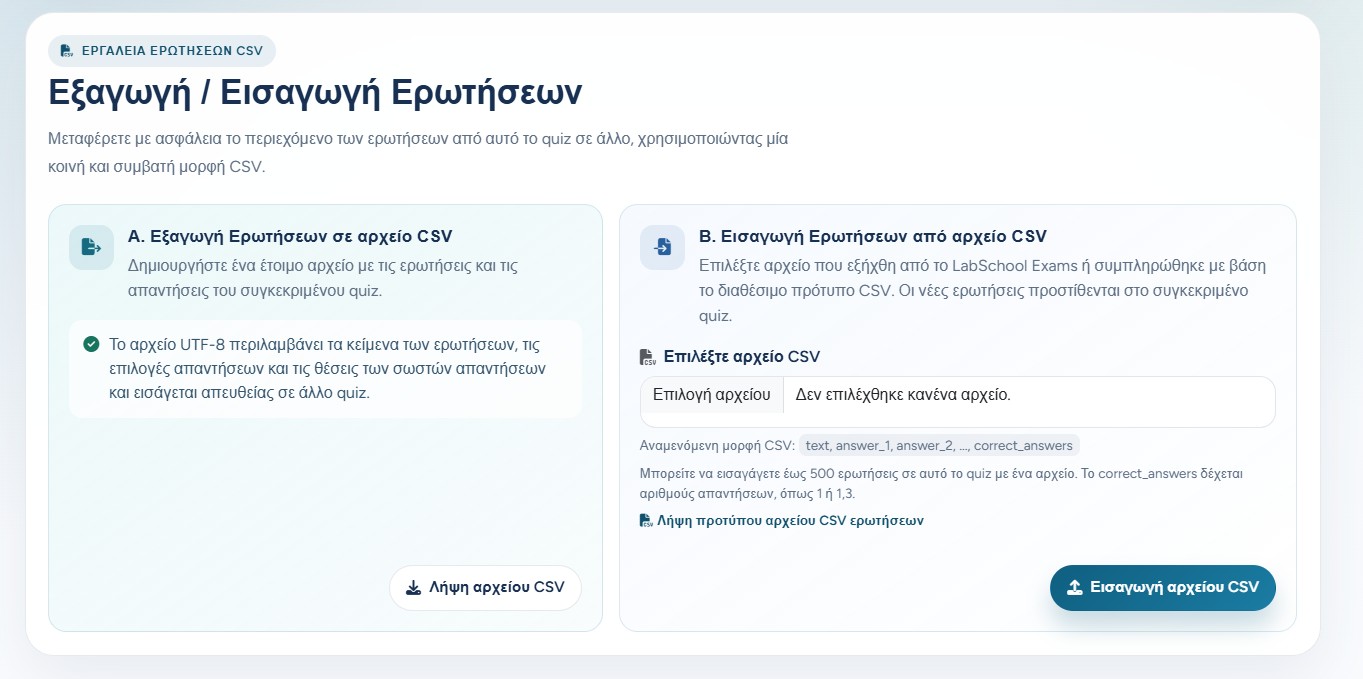
A teacher can export the questions of one quiz and import the same file into another. The UTF-8 file contains question text, answer choices, and the positions of the correct answers, but no participant, result, access, or quiz-setting data.
The headers follow the pattern text, answer_1, answer_2, ..., correct_answers. The correct_answers value can be one number such as 1, or multiple numbers such as 1,3. Imported questions are appended to the target quiz without replacing existing questions.
Export for reuse
Download a ready-to-import CSV containing all question text, answer choices, and correct-answer positions.
Import a compatible file
Use an exported file or complete the provided CSV template. The whole file is rejected if any row is invalid.
Limits and images
The teacher's remaining limits apply, with a safety cap of 500 questions per file. Question images must be added separately.
The question page separates CSV export and import into two clear, compatible steps.
When question editing is locked
If a quiz already has locked content, submitted attempts, or data that must remain stable, the application can stop question editing. This protects previous results and prevents changes that would make reports unreliable.