This page explains, in plain teacher-friendly language, how an educator creates an account, confirms the email address, signs in, and resets a forgotten password.
What this process is for
The account is for the educator who creates and manages quizzes. Students or examinees do not need to create an account for taking a quiz.
1. Register
Fill in your name, institutional email, and a personal password for this application.
2. Verify email
Open the message sent to your email and confirm the address.
3. Sign in
Use your email and the password you created for LabSchool Exams.
Registering as an educator
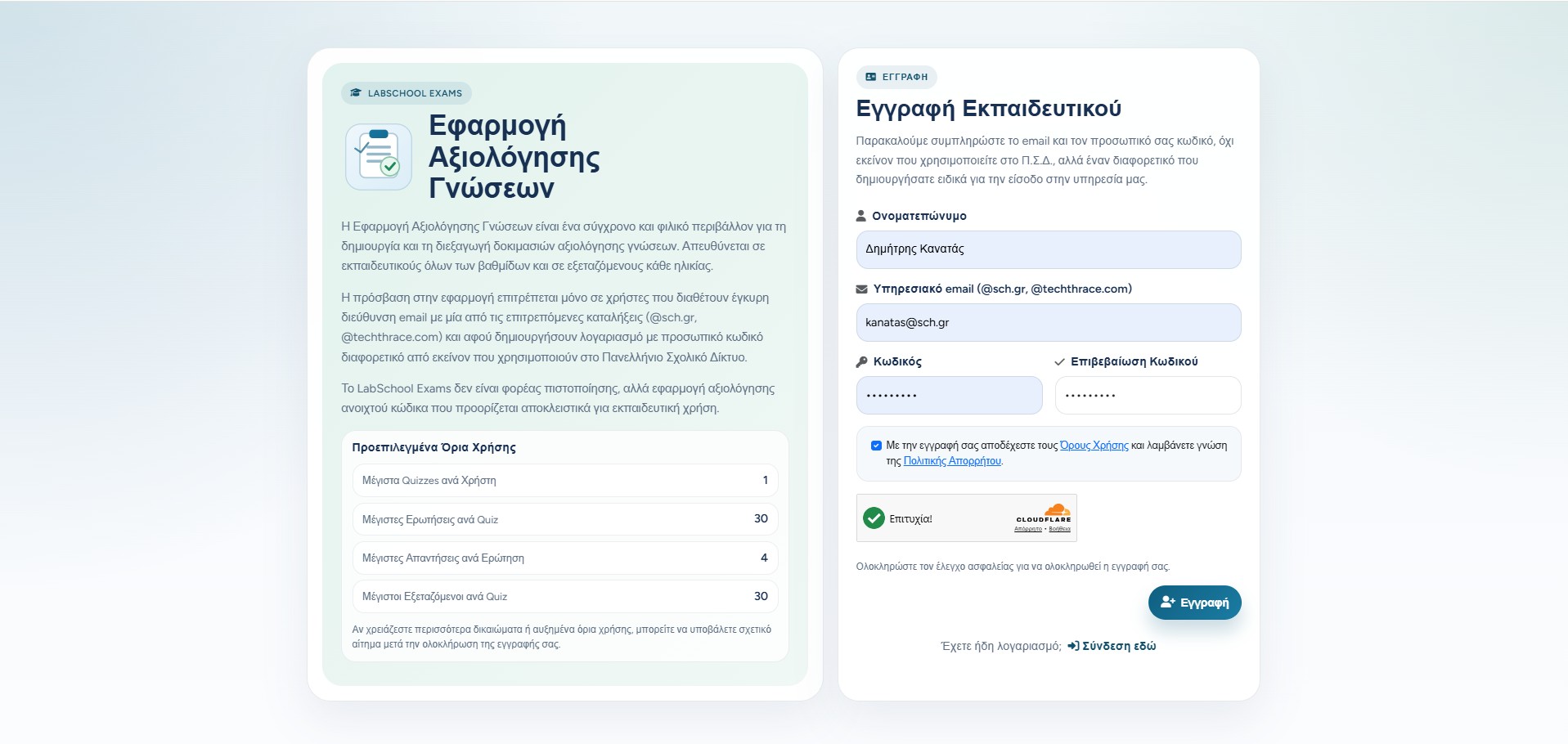
On the registration page, the educator enters full name, institutional email, password, and password confirmation. The password should be a separate personal password for LabSchool Exams, not the password used for another service.
The page also shows the default account limits, such as the number of quizzes, questions, answers, and examinees available to the new account. If more limits are needed later, the educator can request them after registration.
Before submitting the form, the educator accepts the Terms of Use and Privacy Notice and completes the security check.
Educator registration form with account limits and security check.
Confirming the email address
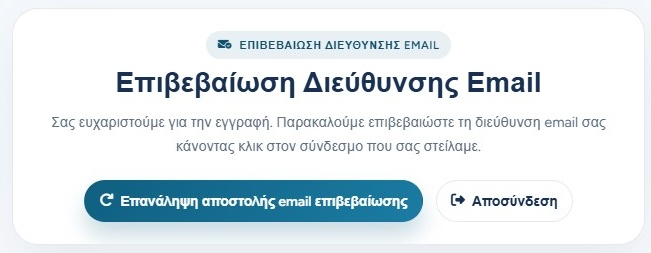
After registration, LabSchool Exams asks the educator to verify the email address. This protects the account and confirms that the address really belongs to the user.
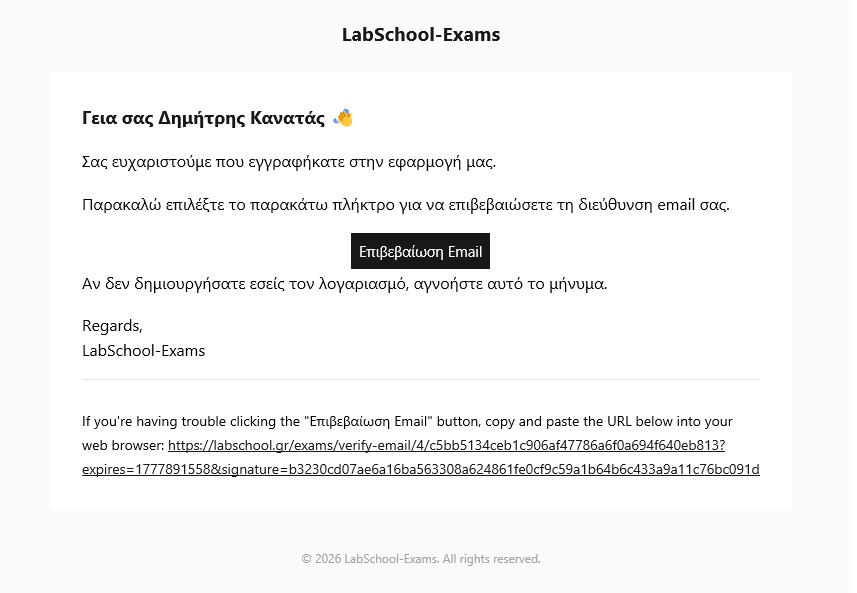
The educator opens the email message and clicks the verification button. If the message does not arrive, the application can send a new verification email from the verification screen.
The verification email includes a button and a fallback link.The application screen can resend the verification email if needed.
Signing in and reaching the dashboard
Once the email has been verified, the educator signs in with the institutional email and the password created during registration.
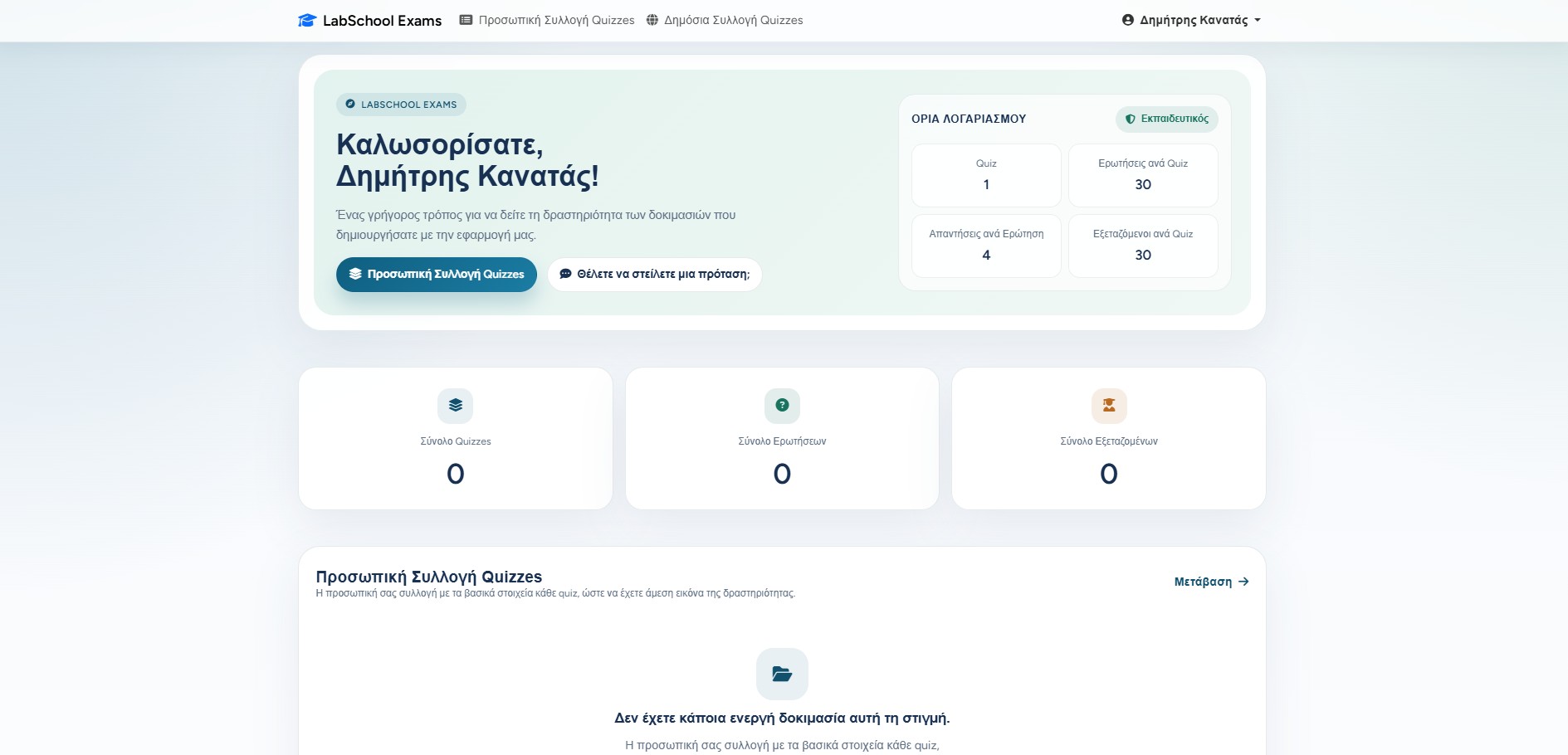
After login, the dashboard opens. From there the educator can go to the personal quiz collection, create quizzes, review activity, and see the account limits.
The first dashboard view after successful registration and login.
If the educator forgets the password
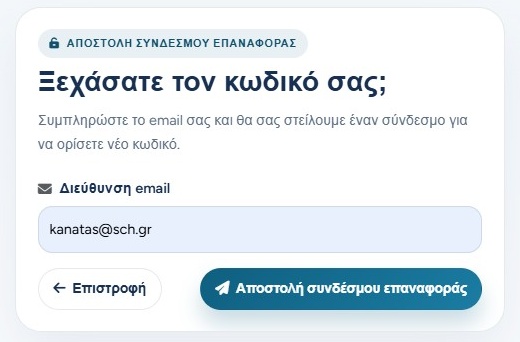
From the login page, the educator chooses the forgotten-password option and writes the email address used for the account.
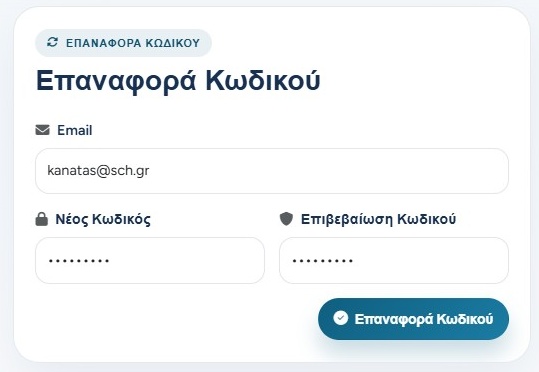
The application sends a reset link. The educator opens that link, enters a new password, confirms it, and then signs in again with the new password.
Only the password changes. The quizzes, reports, and account data remain connected to the same educator account.
The educator requests a password reset link by entering the account email.The reset page asks for a new password and confirmation.