This page explains how a teacher prepares the people who will take a quiz: with student codes, personal links, guest access, CSV import, and anonymous access modes.
What this page is for
The examinee management page is where the teacher decides who can enter a quiz. Examinees do not need to create user accounts. They can enter with a PIN, with a personal link, as guests, or through one of the anonymous modes when those options have been enabled for the quiz.
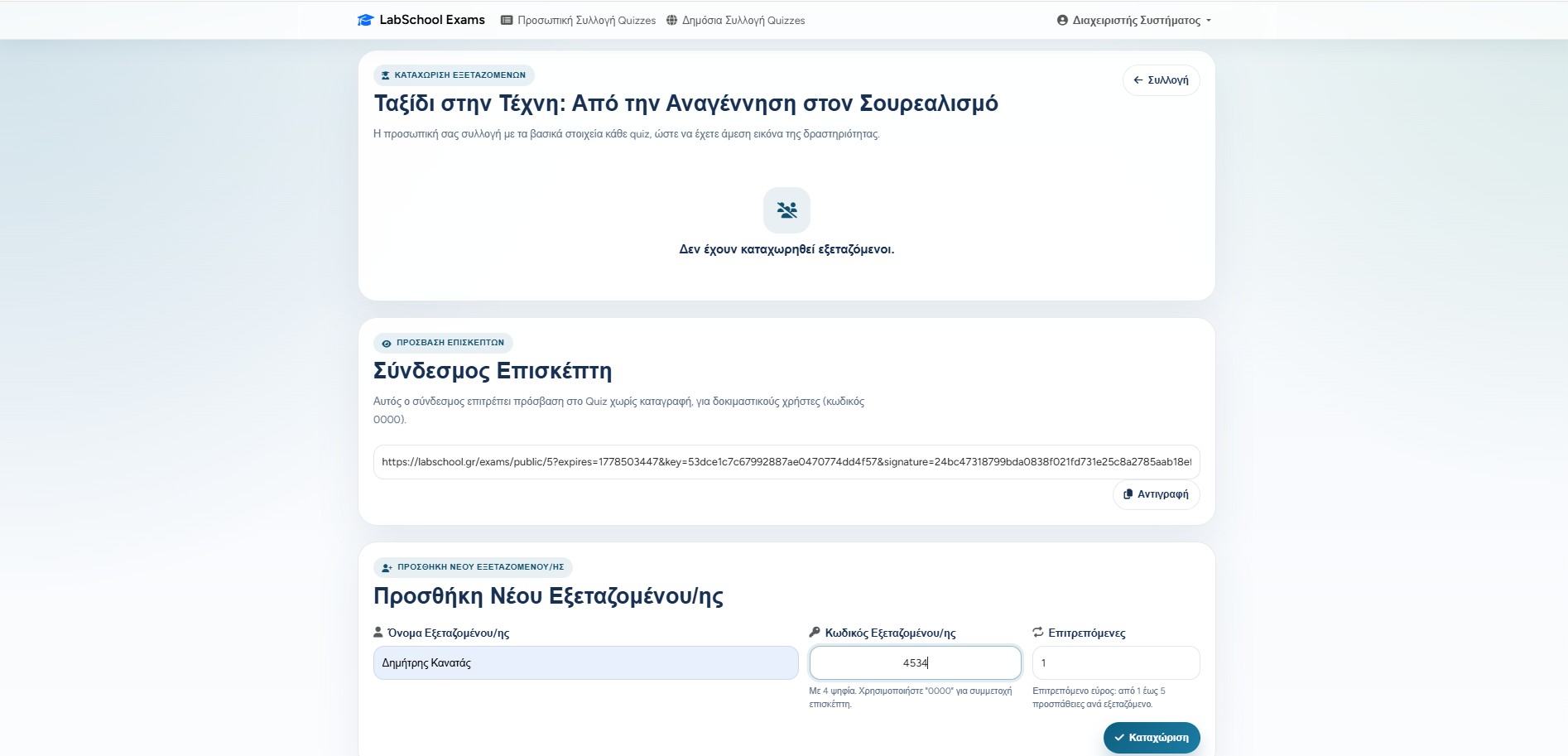
In practice, this page is the teacher's control room before the quiz starts: it shows the registered examinees, their codes, their allowed attempts, and the links or PDF cards that can be shared with them.
Registered examinees
Useful when the teacher knows the names of the students and wants individual tracking.
Guest access
Useful for open participation, without storing each student in advance.
Anonymous modes
Useful when the teacher wants participation without personal names.
The examinee list
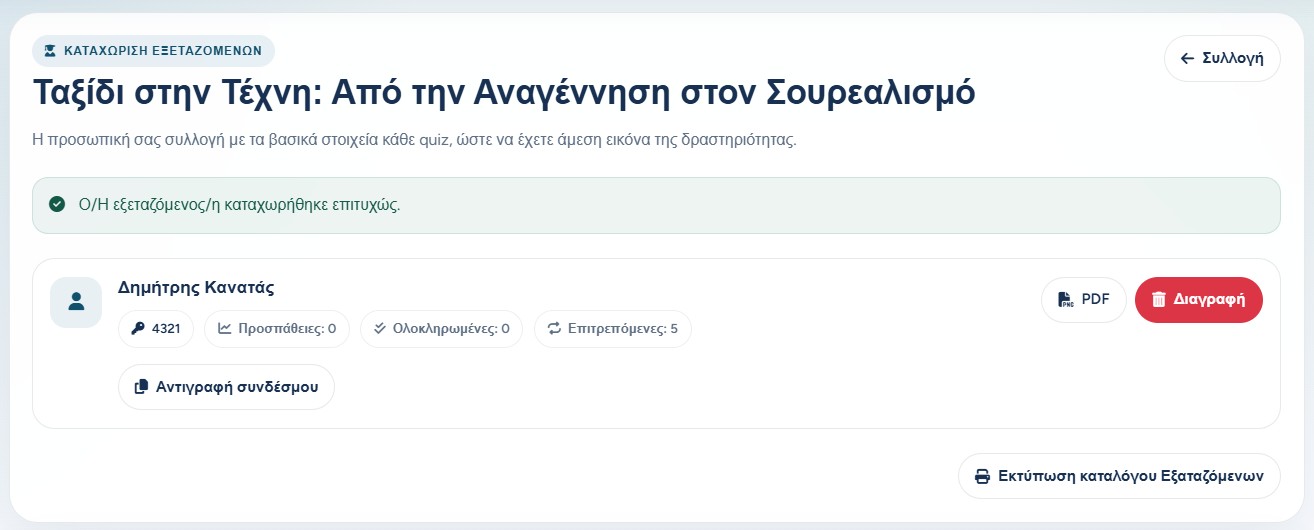
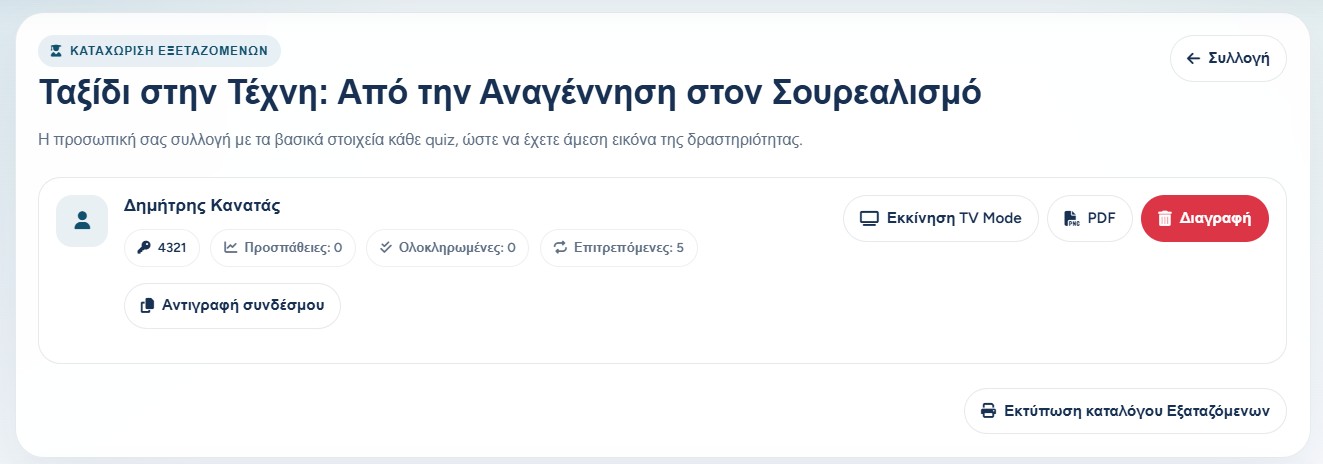
The main list shows each examinee with their name, four-digit code, number of attempts, completed attempts, and the maximum attempts allowed. This helps the teacher see immediately who is ready to participate and whether someone has already used their available attempts.
From the same area, the teacher can copy a personal link, download a PDF with the examinee's access information, or remove an examinee when needed. If second-screen mode is available, the controls for that flow also appear here.
The registered examinees list gathers the student's code, attempts, personal link, PDF, and management actions in one place.
Guest and public access
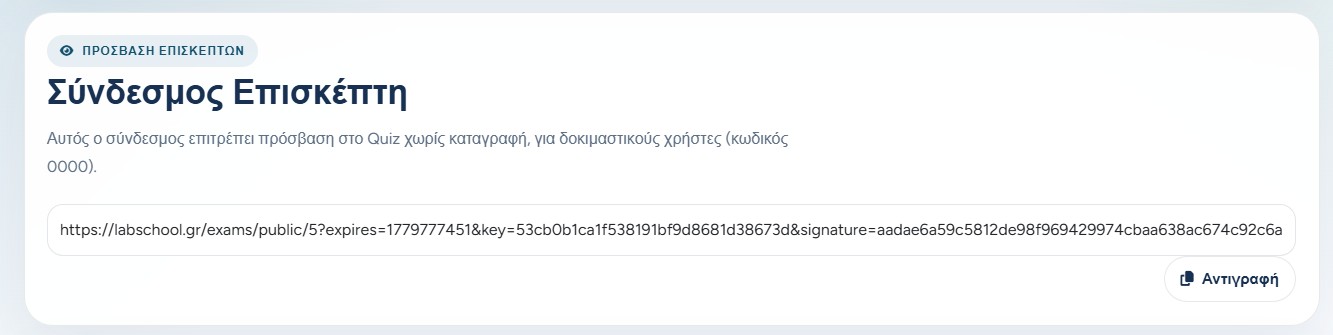
When the quiz allows guest or public access, the teacher can copy a public link and share it with participants. This is helpful for a quick activity where we do not need to prepare a named list beforehand.
The code 0000 is reserved for guest access. For that reason, it cannot be used as the code of a registered examinee.
Guest access is convenient, but it gives less individual control than registered examinees. If we need personal reports for each student, registered examinees or personal links are usually the better choice.
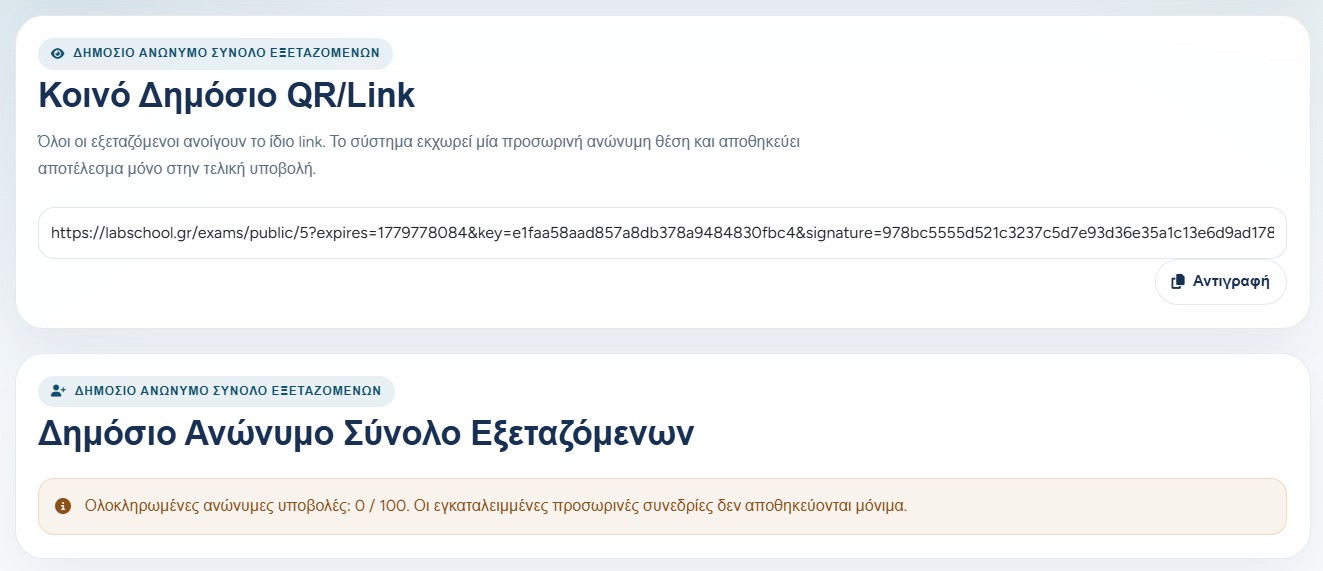
A public guest link can be copied and sent to participants when the quiz settings allow it.
Adding one examinee manually
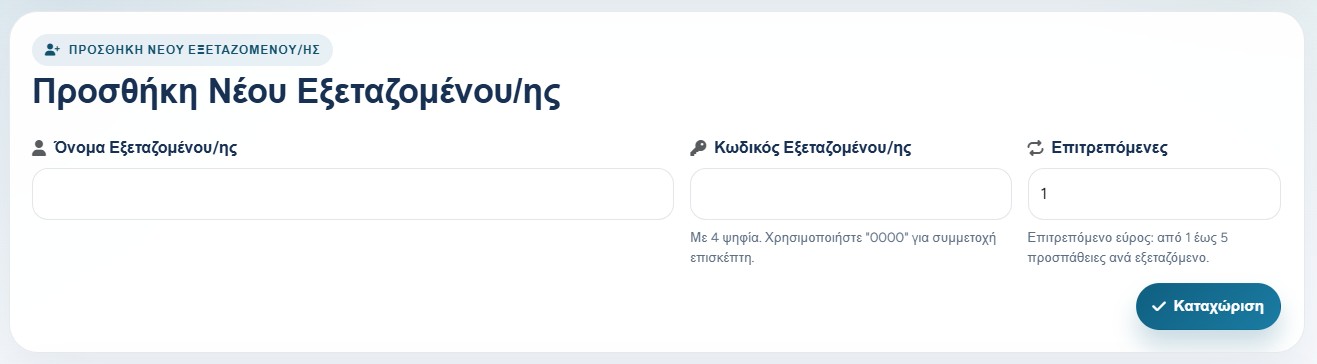
For a small class or a controlled activity, the teacher can add examinees one by one. Each examinee needs a name, a four-digit code, and the maximum number of attempts they may use.
The four-digit code must be unique inside the quiz, and the maximum attempts are usually from 1 to 5. If the quiz uses personal links, the application can create a secure personal link for that examinee.
Name
Used by the teacher to recognize the examinee in lists and reports.
Student code
A four-digit PIN used for controlled entry when PIN access is active.
Max attempts
Defines how many times this examinee may start or complete the quiz.
The manual form is best when the teacher wants to prepare specific students.After saving, the examinee appears in the list with their code, attempts, and available actions.
Importing examinees with CSV
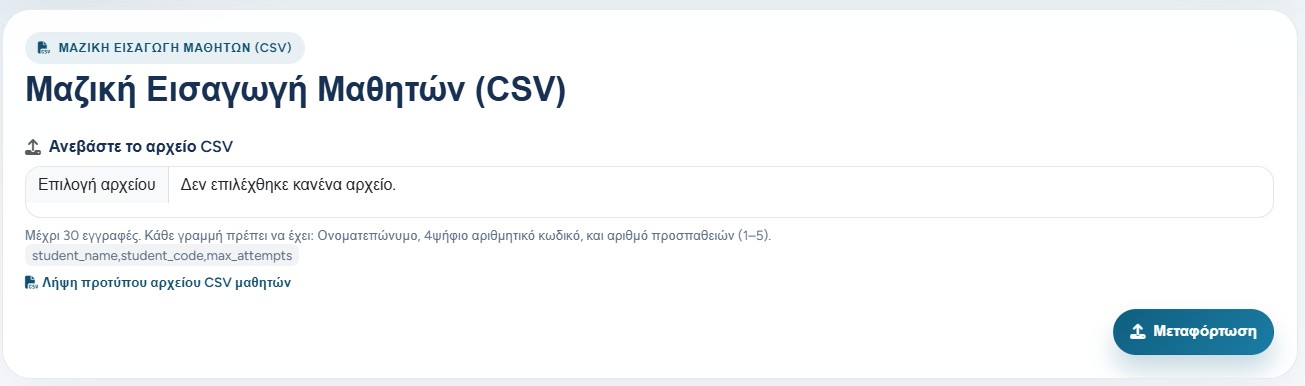
When the teacher already has a student list in a spreadsheet, CSV import saves time. The file must use the expected columns: student_name,student_code,max_attempts.
The import accepts up to 30 rows at a time, with UTF-8 text, four-digit codes, and max attempts from 1 to 5. The reserved guest code 0000 is not accepted, and duplicate codes are rejected.
CSV import is available when the quiz supports continuation of incomplete attempts and is not using an anonymous mode.
The CSV area includes the expected format and a template file so the list can be prepared correctly.
Bulk exam with pre-registered slots
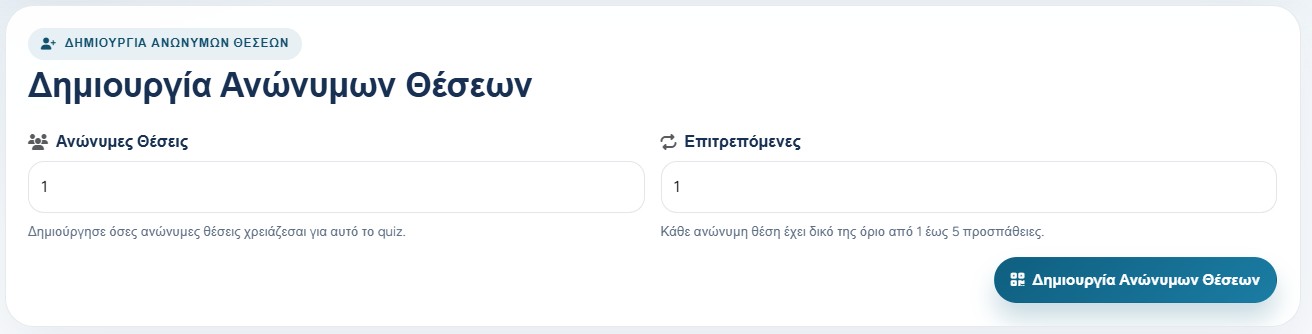
The application creates pre-registered exam slots with a unique PIN and QR Code for participants whose details are not known in advance.
When each card is distributed, the participant writes their full name on it. The teacher keeps the mapping between the printed card and Exam Slot 0001 outside the application.
Each pre-registered exam slot has its own PIN, QR Code, and printable name line.
Public anonymous pool and second screen
A public anonymous pool works differently: the teacher shares one public QR or link, and the system gives anonymous positions to participants until the configured capacity is reached. A printable invitation PDF includes the same QR/link, quiz details, and the link expiration time.
Exam-slot access information can be distributed as printed cards, QR Codes, or personal links.
Some quizzes may also use a second-screen or television-style flow. In that case, the teacher controls a shared display while participants answer from their own devices. These options are advanced and usually appear only when the quiz settings and user permissions allow them.
Public anonymous and display-mode options are useful for events, shared screens, and fast group activities.
Deleting and protecting data
Removing an examinee is a serious action because it can also remove their attempts and answers for that quiz. Before deleting, the teacher should make sure the information is no longer needed for reports or grading.
A simple rule helps: use named examinees when you need personal follow-up, use guest access for quick open activities, and use anonymous modes when the activity should not be connected to student names.