This page explains the teacher workspace: dashboard, quiz collections, account limits, requests for more capacity, profile settings, feedback, and the everyday tools used to prepare classroom assessments.
The teacher dashboard
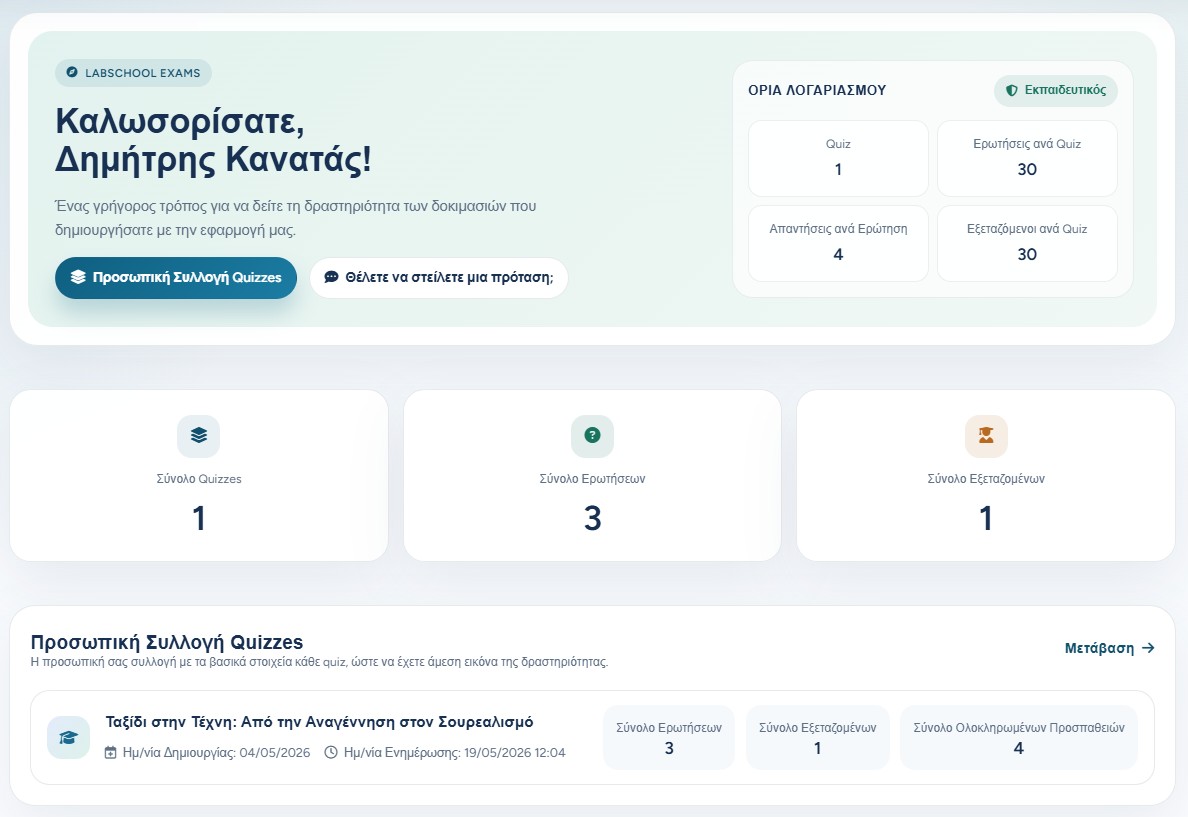
After signing in, the teacher sees a dashboard with a quick summary of activity. It shows the account limits, total quizzes, total questions, total examinees, and a shortcut to the personal quiz collection.
The dashboard is the starting point for everyday work: checking recent activity, opening the quiz collection, reading updates, and sending feedback or suggestions.
The dashboard gives the teacher a quick picture of account limits and quiz activity.
Account limits and requests for more capacity
Each teacher account has usage limits. These define how many quizzes the teacher can create, how many questions each quiz may contain, how many answers each question may have, and how many examinees can be registered in a quiz.
When the teacher reaches a limit, the application can show a request button. The teacher may request more quizzes, more questions in a quiz, more possible answers in a question, or more examinees in a quiz. The request is sent to the administrators, who can review the need and adjust the limits.
More quizzes
Used when the teacher has reached the number of quizzes allowed for the account.
More questions or answers
Used when a quiz needs more questions or a question needs more answer choices.
More examinees
Used when a quiz needs a larger participant list.
Updates, guide, and support shortcuts
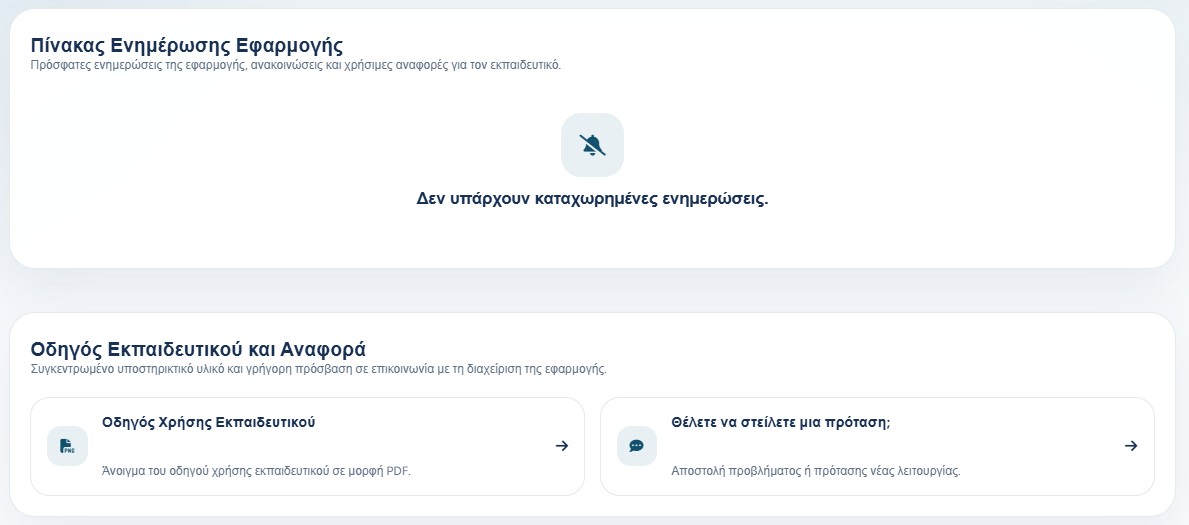
The lower part of the dashboard can show application updates posted by the administrators. This is where teachers can learn about recent changes, announcements, and useful references.
The same area also provides quick access to the teacher guide and to the suggestion form. This makes support part of the normal workflow, not a separate hidden process.
The teacher can read updates, open the usage guide, or send a suggestion from the dashboard.
Personal quiz collection
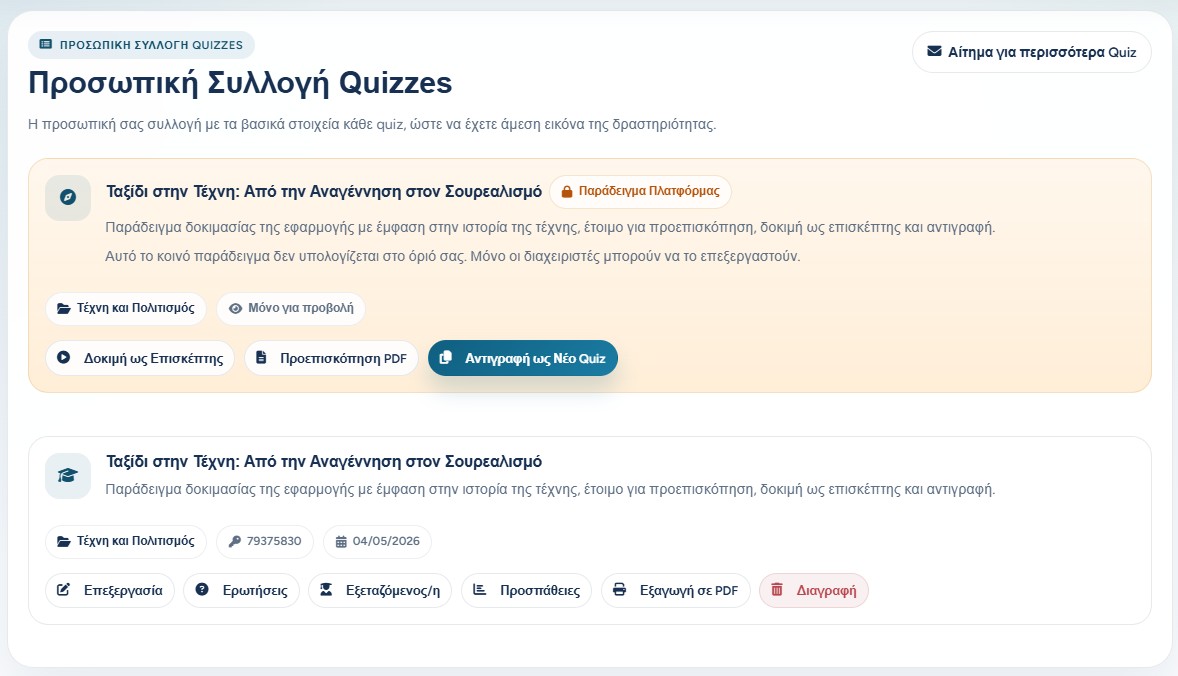
The personal collection is where the teacher manages their own quizzes. Each quiz card gives access to editing, questions, examinees, attempts, PDF export, and deletion.
The platform example appears separately as a shared read-only example. The teacher can try it as a guest, preview its PDF, or copy it as a new quiz in their own collection.
The personal collection gathers quiz management actions in one place.
Public quiz collection
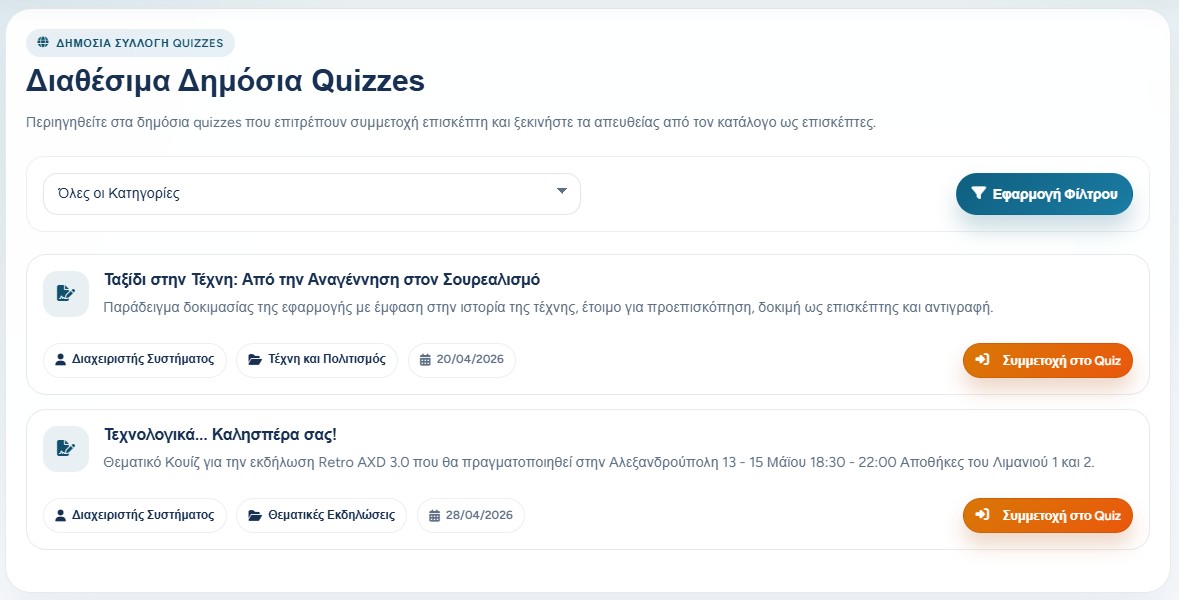
The public collection shows quizzes that allow guest or public participation. A teacher can browse by category, apply a filter, and start a public quiz as a participant.
This area is useful for demonstrations, open classroom activities, events, and examples that can be shared without preparing registered examinees first.
The public catalogue lists quizzes that can be joined directly when public participation is allowed.
Profile and password settings
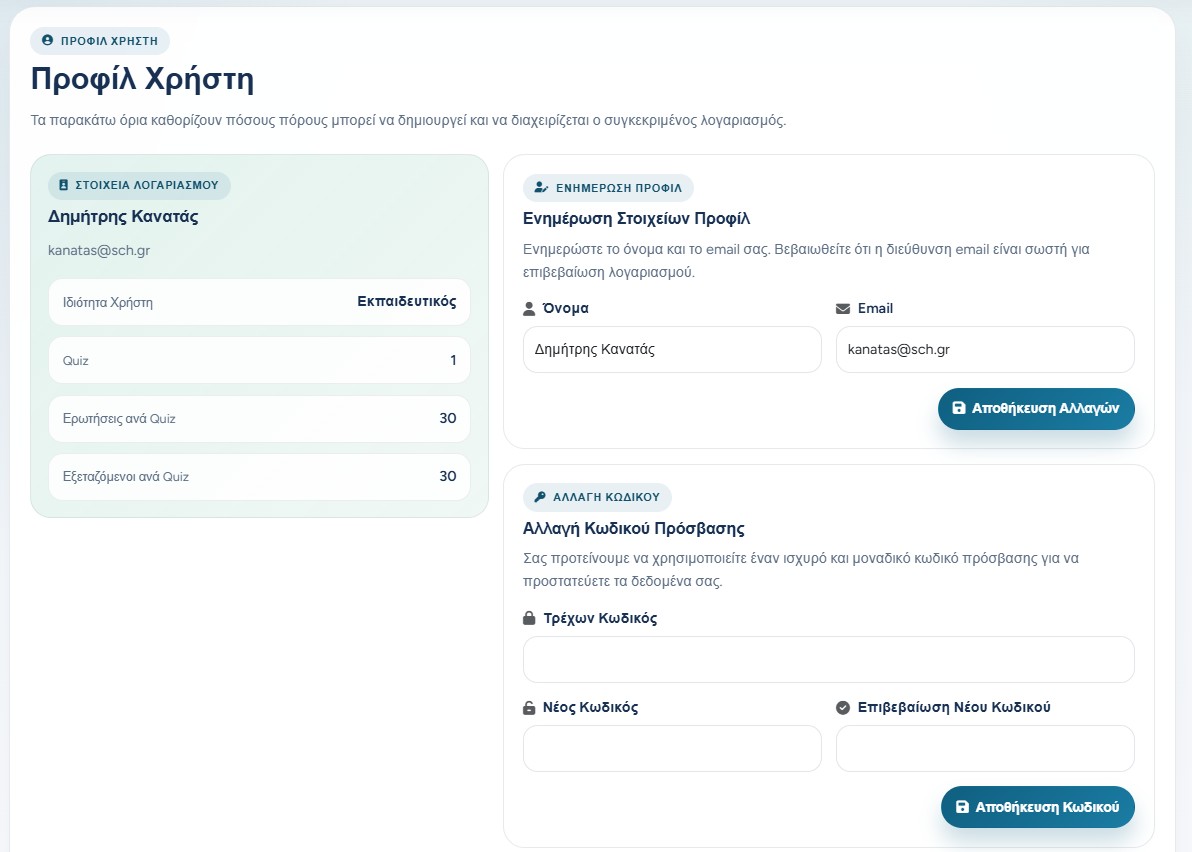
From the profile page, the teacher can review account details and current limits. The teacher can update their name and email address, and can change the account password.
A strong, unique password helps protect quiz data, participant lists, results, and certificates. If the email address changes, it should remain correct because account verification and important messages depend on it.
The profile page shows account details, limits, profile update, and password change forms.
Deleting the account
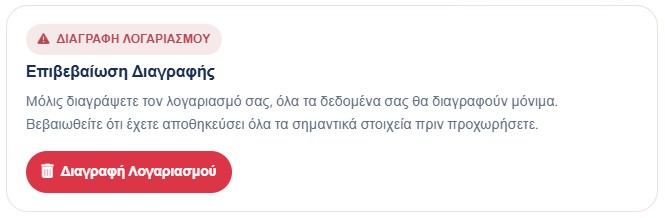
Account deletion is a permanent action. When the teacher deletes the account, the related account data is removed according to the application flow.
Before deleting, the teacher should make sure important quiz material, reports, and results have been handled appropriately.
The deletion area requires confirmation because the action is permanent.
Sending a suggestion or problem report
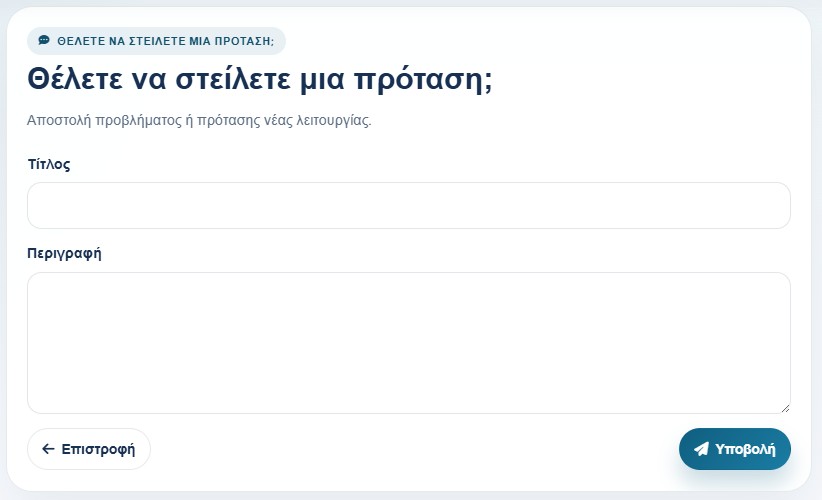
Teachers can send a problem report or a suggestion for a new feature. The form asks for a title and a description, so the administrator can understand what happened or what improvement is being proposed.
This is also the best place to describe ideas that do not fit a quota request. For example, a teacher may suggest a new workflow, a better label, or a change that would make classroom use easier.
For capacity needs, use the specific request buttons for more quizzes, questions, answers, or examinees. For general ideas or issues, use the suggestion form.
The suggestion form sends a title and description to the administrators.
A practical teacher workflow
A simple daily flow is: check the dashboard, open the personal collection, create or edit the quiz, add questions, prepare examinees, run the quiz, and then review results.
When the account reaches a limit, the teacher sends a targeted request. When the teacher notices a problem or has an idea, they send feedback. This keeps the classroom workflow moving while allowing administrators to support real needs.